

Time to complete: ~25 minutes
Pre-requisites
Pre-requisites
- Python 3.8 or higher
- Basic knowledge of Python programming
- Familiarity with web scraping concepts
- Basic understanding of CSS selectors
Our Goal
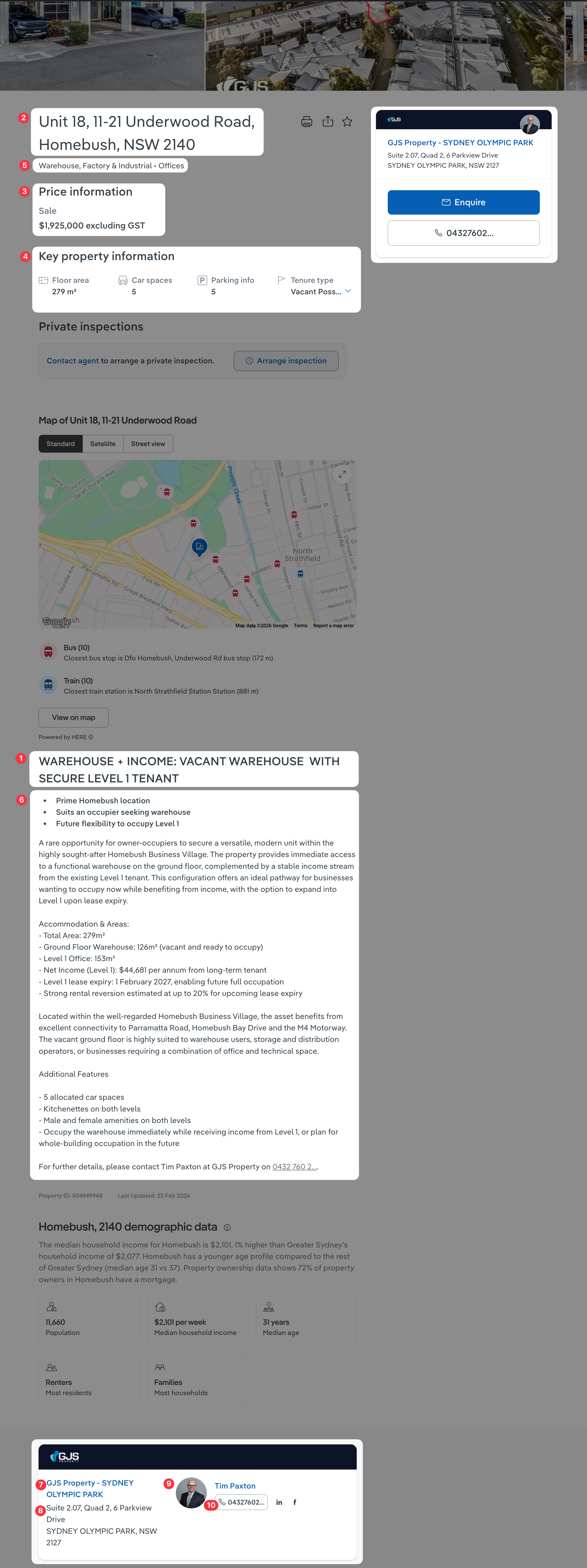
For this demo, we’ll scrape commercial properties for sale in Inner West, Sydney for the following information:Property Information:
- Title
- Address
- Price information
- Attributes (Floor Area, etc.)
- Type
- Description
- Websites
- Photos
Agency Information:
- Agency Name
- Agency Address
- Agency Phone Number
- Agent Names
- Agent Phone Numbers
start_url:
https://www.realcommercial.com.au/for-sale/inner-west-nsw/
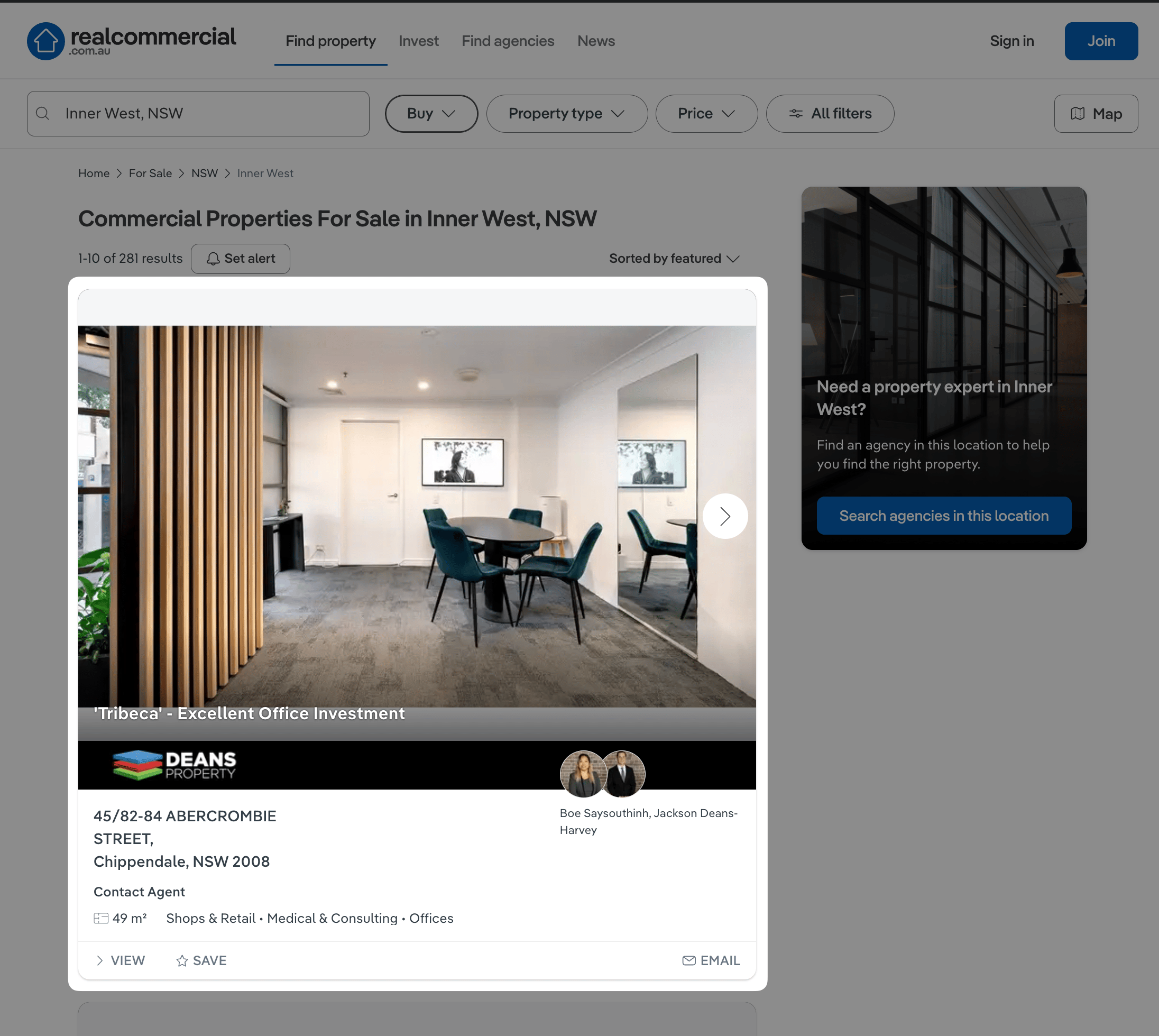
Our Scraper
From the , we’ll collect the URLs of all the :https://www.realcommercial.com.au/for-sale/property-11-12-50-victoria-road-drummoyne-nsw-2047-505110252
https://www.realcommercial.com.au/for-sale/property-office-3-728-darling-street-rozelle-nsw-2039-504947596
https://www.realcommercial.com.au/for-sale/property-level-1-9-13-parnell-st-strathfield-nsw-2135-505024364
https://www.realcommercial.com.au/for-sale/property-suite-69-330-370-wattle-street-ultimo-nsw-2007-505044800
https://www.realcommercial.com.au/for-sale/property-10-203-211-great-north-road-five-dock-nsw-2046-503437066
https://www.realcommercial.com.au/for-sale/property-53-1-railway-parade-burwood-nsw-2134-505088312
https://www.realcommercial.com.au/for-sale/property-office-23-1-railway-parade-burwood-nsw-2134-505044676
https://www.realcommercial.com.au/for-sale/property-1-2-17-erskineville-road-newtown-nsw-2042-505057340
https://www.realcommercial.com.au/for-sale/property-3-2a-burrows-road-st-peters-nsw-2044-505044592
https://www.realcommercial.com.au/for-sale/property-137-concord-road-north-strathfield-nsw-2137-505050768
Replace the starting URL
Replace the starting URL
You can replace the starting URL with any other search page on the website, such as: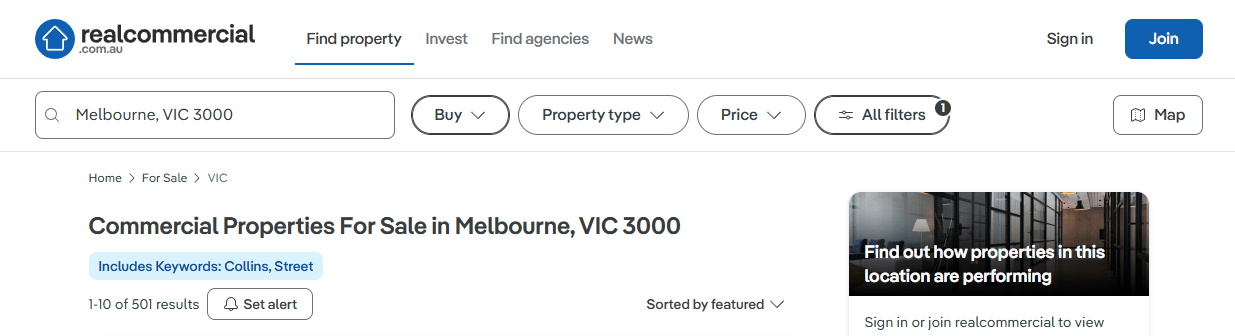
- Commercial properties for lease in Inner West, Sydney
- Commercial properties for sale in Northern Beaches, Sydney
- Commercial properties for lease in Northern Beaches, Sydney
https://www.realcommercial.com.au/for-sale/melbourne-vic-3000/?includePropertiesWithin=includesurrounding&keywords=collins,%2Bstreet
Why not scrape from the search page too?
Why not scrape from the search page too?
We have to visit the detail page regardless, since the search page doesn’t carry every field we need. Given that, it’s cleaner to give each step one job: the search page is for discovering URLs, and the detail page is for extracting data. Splitting a property’s fields across two scrapers means two places to update when the site changes, and two places for bugs to hide.
Pagination
The search page only shows 10 properties at a time, out of 278 total. To get the rest, we need to keep clicking the next page button until we’ve visited every page. This is called , and our scraper needs to handle it so no properties are missed.

The next page button

Last page of results
TL;DR: We loop through all the search pages to collect the URLs of every detail page, then loop through those detail pages to extract the information we want.
Step by step guide
1
Create the project
- Open your editor. We’ll use VS Code, but any editor works.
-
Create your project folder. You can also use the terminal:
mkdir realcommercial-scraper -
Open the project folder in VS Code:
File > Open folder > Select the folder you just created
-
Open a new terminal:
Terminal > New Terminal
Or use the shortcut:for Windows
for macOS -
Create a new virtual environment:
python -m venv .venv -
Activate your virtual environment:
# Windows: .venv\Scripts\activate # macOS/Linux source .venv/bin/activate -
Create a new Python file:
File > New File
# or from the terminal:
code scraper.py
.
├── .venv/
└── scraper.py
2
Install dependencies and import packages
We’ll use three Python libraries:Then add these imports at the top of
requestsfor making HTTP requests to the websiteBeautifulSoupfor parsing HTML and extracting datapandasfor organizing the scraped data into a DataFrame and saving it to a CSV file
pip install requests beautifulsoup4 pandas
scraper.py:import re
import json
import requests
import pandas as pd
from time import sleep
from bs4 import BeautifulSoup
3
Declare the URL variables
base_url = 'https://www.realcommercial.com.au'
start_url = 'https://www.realcommercial.com.au/for-sale/inner-west-nsw/'
-
base_url: used to complete partial/relative URLs, for example:base_url+/for-sale/inner-west-nsw/?page=2
https://www.realcommercial.com.au/for-sale/inner-west-nsw/?page=2 -
start_url: the search page we’ll use to collect all the detail URLs.
4
Make a test request
Let’s make a test request to the HTTP 429 means “Too Many Requests.” The fix: copy your browser’s request headers into the script.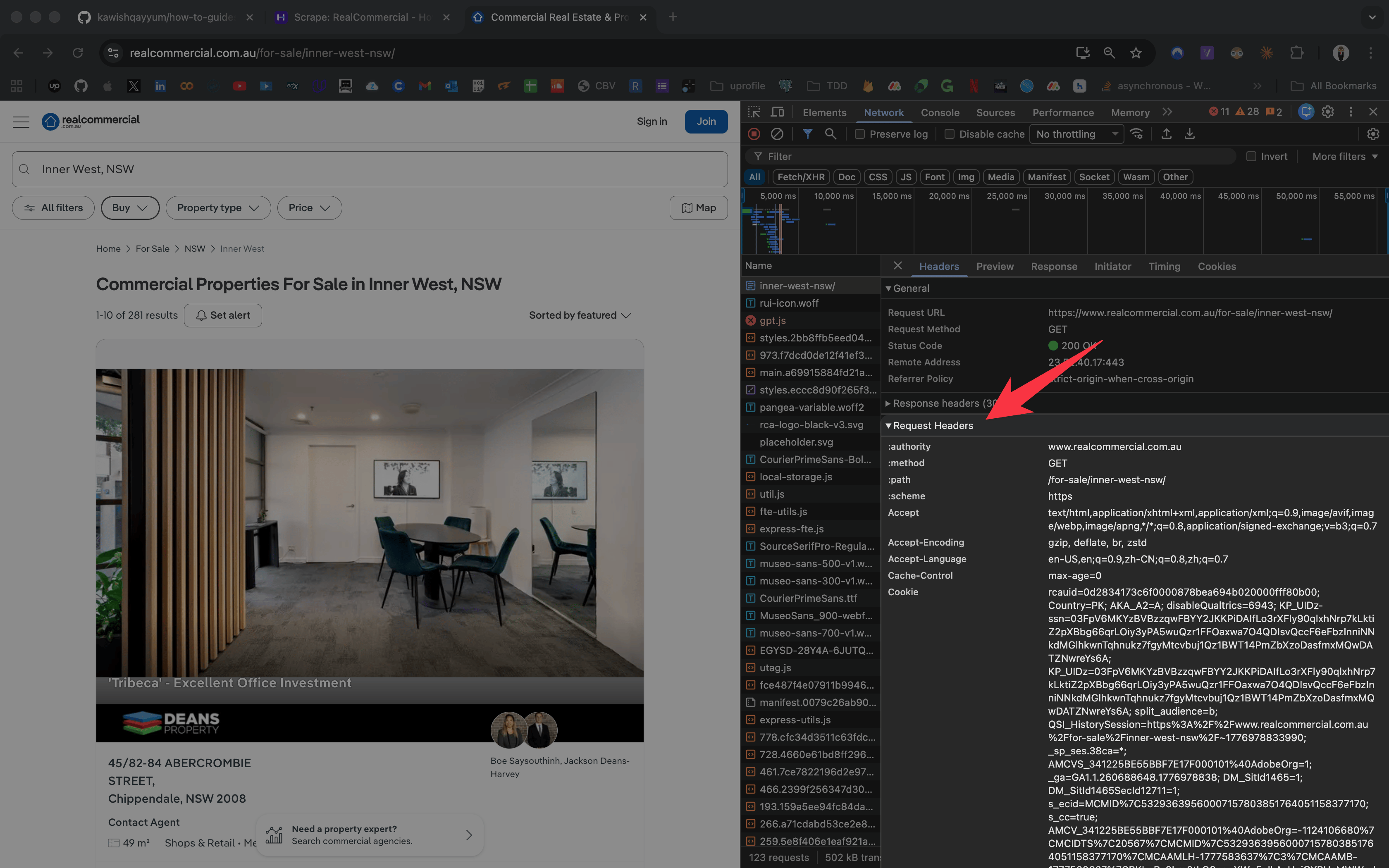
start_url and see what comes back:response = requests.get(start_url)
print(response)
# <Response [429]>
headers = {
"authority": "www.realcommercial.com.au",
"method": "GET",
"path": "/for-sale/inner-west-nsw/",
"scheme": "https",
"accept": "text/html,application/xhtml+xml,application/xml;q=0.9,image/avif,image/webp,image/apng,*/*;q=0.8,application/signed-exchange;v=b3;q=0.7",
"accept-encoding": "gzip, deflate, br, zstd",
"accept-language": "en-US,en;q=0.9,zh-CN;q=0.8,zh;q=0.7",
"cache-control": "max-age=0",
"cookie": "rcauid=46283417dd660000a332e769a20000005c250300; disableQualtrics=1449; Country=PK; AKA_A2=A; KP_UIDz-ssn=03g3DIB8AgmYmmtfv9F7LjYnWFDaqYi37odY0uHQt53PRwACoaxeE9LL4A0GAtwdaX6BEMVqflTpzQV6xde3HkjOmM6PRGc4VQs4fcQRBRwlCAa61BuDA9J8yBssDCzOMKHJijLOu941tUlQFvDEVFVlZ333bb6iKLOmKvnxpqkdkqQDv0; KP_UIDz=03g3DIB8AgmYmmtfv9F7LjYnWFDaqYi37odY0uHQt53PRwACoaxeE9LL4A0GAtwdaX6BEMVqflTpzQV6xde3HkjOmM6PRGc4VQs4fcQRBRwlCAa61BuDA9J8yBssDCzOMKHJijLOu941tUlQFvDEVFVlZ333bb6iKLOmKvnxpqkdkqQDv0",
"priority": "u=0, i",
"sec-ch-ua": '"Google Chrome";v="147", "Not.A/Brand";v="8", "Chromium";v="147"',
"sec-ch-ua-mobile": "?0",
"sec-ch-ua-platform": '"Windows"',
"sec-fetch-dest": "document",
"sec-fetch-mode": "navigate",
"sec-fetch-site": "same-origin",
"sec-fetch-user": "?1",
"upgrade-insecure-requests": "1",
"user-agent": "Mozilla/5.0 (Windows NT 10.0; Win64; x64) AppleWebKit/537.36 (KHTML, like Gecko) Chrome/147.0.0.0 Safari/537.36",
}
user-agent and cookie are the ones that matter most. Retry the request:response = requests.get(start_url, headers=headers)
print(response)
# <Response [200]>
This is a short-term fix. For long-running scrapers, you’ll want to rotate proxies and user-agents and add strategic delays. See the “Going to production” section at the end.
5
Collect all the detail page URLs
Time to write the logic for pulling detail URLs off the search page: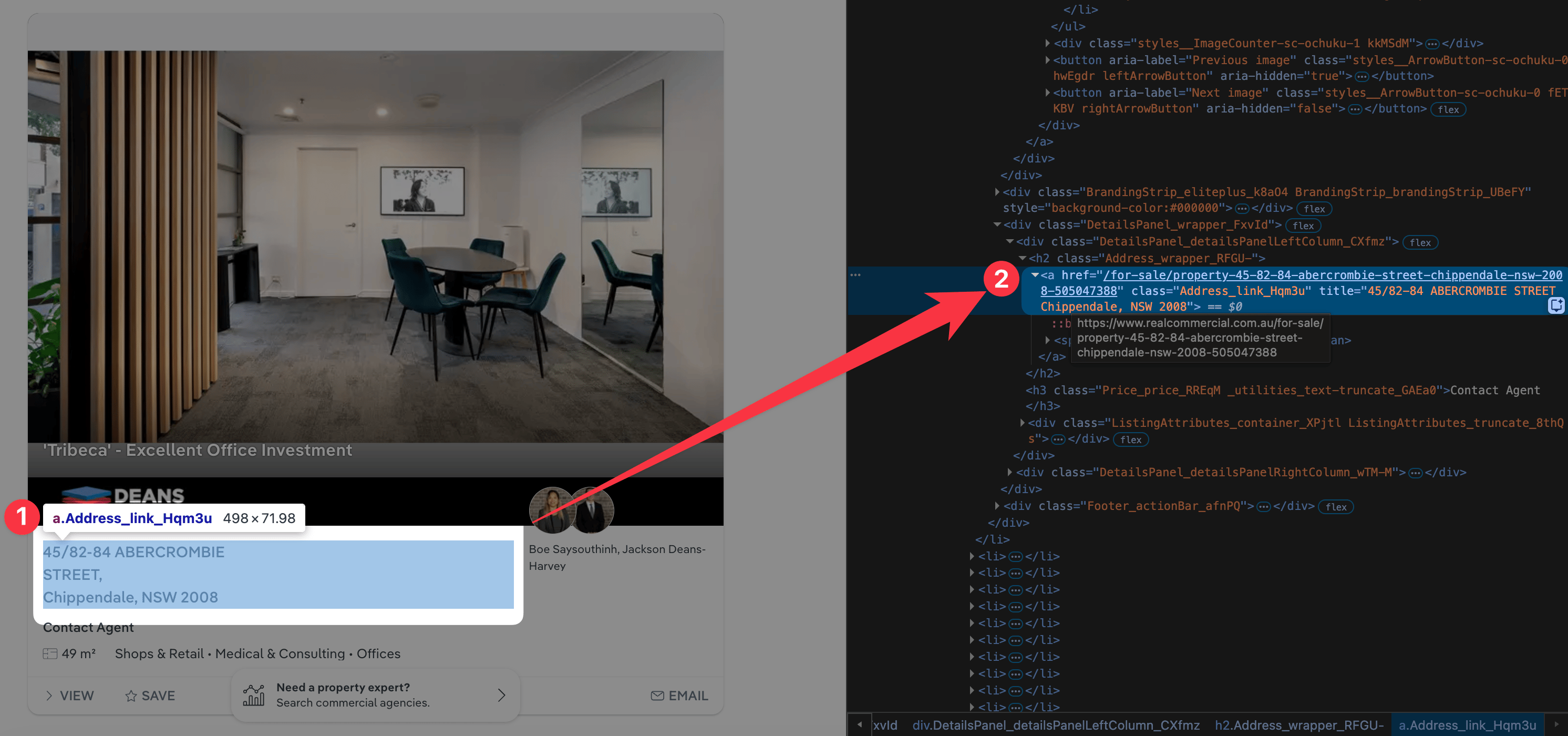
detail_urls = []
def collect_detail_urls(url):
response = requests.get(url, headers=headers)
soup = BeautifulSoup(response.text, 'html.parser')
# Find all listing links on the page
listings = soup.find_all('a', class_='Address_link_Hqm3u')
for listing in listings:
detail_urls.append(base_url + listing['href'])
# Check for next page
next_page = soup.find('a', rel='next')
if next_page:
sleep(3)
collect_detail_urls(base_url + next_page['href'])
- We make a request to the search page.
- We parse the response into a BeautifulSoup object.
- Detail URLs live in anchor tags with the class
Address_link_Hqm3u(you can confirm this via right-click → Inspect on any property address). We collect all 10 per page. - We look for the next page link and call the function recursively until there are no more pages.
6
Extract the property JSON from the detail page
Let’s look at a detail page and figure out where our data lives. Starting with the price, you’ll see the selector is:But when you try to find it with BeautifulSoup:you get:Why? The price isn’t in the initial HTML. It’s rendered by JavaScript. So how do we get it?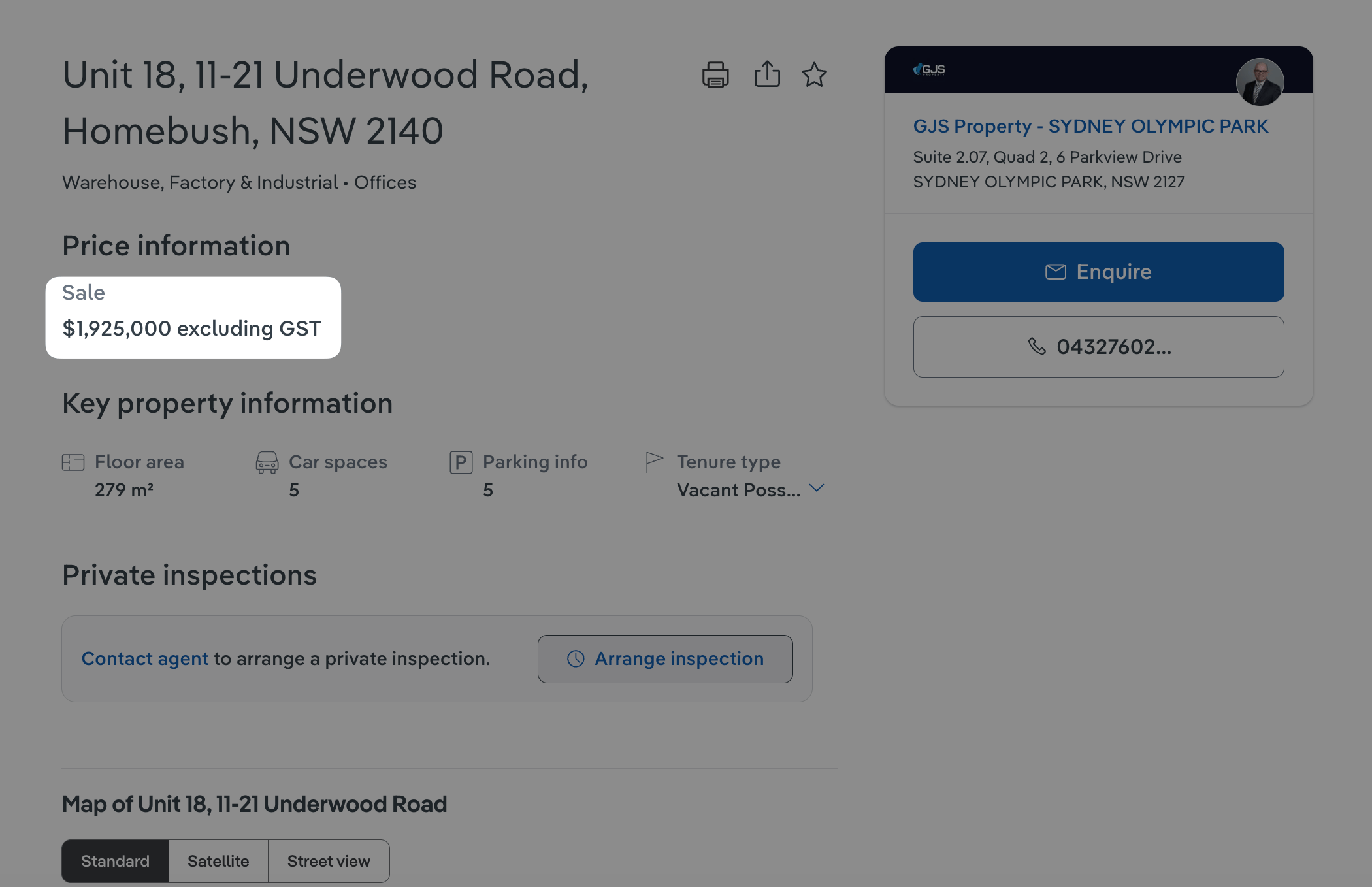
div[class="Price_priceLabel_-GsRd"]
response = requests.get(detail_url, headers=headers)
soup = BeautifulSoup(response.text, 'html.parser')
price_type = soup.find('div', class_='Price_priceLabel_-GsRd').text.strip()
None
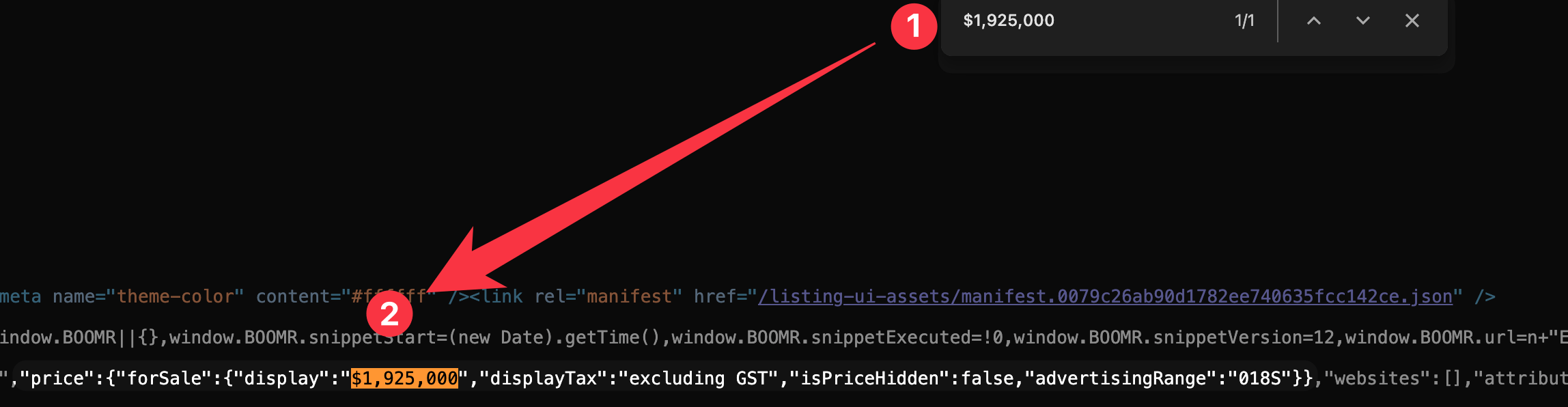
- Right-click → View Page Source
- Search for the price. There’s only one instance, buried in a
<script>tag.
REA.pageData, and it contains every field we need. Here’s the function that digs it out:def get_property_json(soup):
script_tag = next(
s for s in soup.find_all("script")
if s.string and "REA.pageData" in s.string
)
script_text = script_tag.string
match = re.search(
r"REA\.pageData\s*=\s*(\{.*?\});", script_text, re.DOTALL
)
if match:
page_data = json.loads(match.group(1))
prop = page_data["listing"]
prop = normalize_property(prop)
return prop
print("REA.pageData not found")
return None
- We find the script tag containing
REA.pageData. - We use regex to extract everything between the curly braces:
REA.pageData = {<everything-here>};
page_data object has a lot of noise. It has three top-level keys, but we only care about one:page_data.keys()
# Outputs:
# dict_keys(['listing', 'demographicData', 'optimizelyDataFile'])
listing and pass it to normalize_property (covered in the next step), which flattens it and strips the fields we don’t need. The payoff: no CSS selector hunting, just clean JSON.Now wrap the whole thing in a function that takes a detail URL and returns the property dict:def scrape_detail_page(url):
response = requests.get(url, headers=headers)
soup = BeautifulSoup(response.text, 'html.parser')
return get_property_json(soup)
7
Normalize the property JSON
On to What’s happening:
normalize_property:def normalize_property(prop):
if not prop:
return None
fields_to_keep = [
"description",
"websites",
"attributes",
"address",
"title",
"price",
"agencies",
"photos",
]
# Drop unwanted fields
prop = {k: prop[k] for k in fields_to_keep if k in prop}
# Flatten price
price = prop.get("price", {}).get("forSale", {})
prop["price"] = price.get("display", "")
prop["price_tax"] = price.get("displayTax", "")
prop["price_hidden"] = price.get("isPriceHidden", False)
# Flatten websites
prop["websites"] = [w["url"] for w in prop.get("websites", [])]
# Flatten attributes
attributes = {a["label"]: a["value"] for a in prop.get("attributes", [])}
prop.update(attributes)
# Flatten address
addr = prop.get("address", {})
prop["address"] = f"{addr.get('streetAddress', '')}, {addr.get('suburb', '')}, {addr.get('state', '')} {addr.get('postcode', '')}"
# Flatten photos
prop["photos"] = [p["url"] for p in prop.get("photos", [])]
# Normalize agency info
agency = prop["agencies"][0] if prop.get("agencies") else {}
prop["agency_name"] = agency.get("name", "")
agency_addr = agency.get("address", {})
prop["agency_address"] = f"{agency_addr.get('streetAddress', '')}, {agency_addr.get('suburbAddress', '')}".strip(", ")
prop["agency_phone"] = agency.get("phone", {}).get("dial", "")
salespeople = agency.get("salespeople", [])
prop["agent_names"] = " | ".join(p.get("name", "") for p in salespeople)
prop["agent_phones"] = " | ".join(p.get("phone", {}).get("dial", "") for p in salespeople)
prop.pop("agencies", None)
prop.pop("attributes", None)
return prop
- The full listing object is massive. We only keep the fields listed in
fields_to_keep. - Then we flatten and normalize each one.
{
"description":"Deans Property is proud to present this creative office located in a prominent area with high street visibility in desirable Chippendale. This well-appointed office space is centrally located within walking distance to Central Park, public transport plus a variety of cafes, restaurants, and boutique businesses.<br/><br/>Chippendale is one of the most desired suburbs to be established in. This technology precinct is dominated by the University of Technology Sydney and the recent urban regeneration of Central Park. We have also seen recently that tenants such as Atlassian and Hotels Combined are making this their new base.<br/><br/>Features include:<br/>- Location: Situated in Chippendale's landmark warehouse conversion, 'Tribeca'<br/>- Configuration: Self-contained office space with street signage<br/>- Exposure: Valuable street visibility & window display<br/>- Convenient: Kitchenette facilities<br/>- Comfort: Bathroom with shower facilities<br/>- Secure: Secure building with lift & intercom entry<br/>- Shared: Communal facilities including gymnasium & sauna<br/>- Accessible: Short stroll to all amenities & eateries including Central Park<br/>- Connected: Easy access to Broadway, Central Station & the CBD<br/>- Proximity: Close to UTS, Notre Dame & Sydney University<br/><br/>For any further questions or if you wish to arrange an inspection please contact the Exclusive Agents today.<br/>For more property matches, visit www.deansproperty.com.au",
"websites":[
"https://www.deansproperty.com.au/8605690/"
],
"address":"45/82-84 ABERCROMBIE STREET, Chippendale, NSW 2008",
"title":"'Tribeca' - Excellent Office Investment ",
"price":"Contact Agent",
"photos":[
"https://i1.au.reastatic.net/712x496-smart=80,r=33,g=40,b=46,quality=60,progressive/07e31beee0e3b4c315a04054aec97bbd04c8829adec17818fd2989e20094de45/image0.jpg",
"https://i1.au.reastatic.net/712x496-smart=80,r=33,g=40,b=46,quality=60,progressive/c9ba2a40012bcc8fbc90691bbe3d971a0945542489601d73bbb6a1996f032bae/image1.jpg",
"https://i1.au.reastatic.net/712x496-smart=80,r=33,g=40,b=46,quality=60,progressive/382157a32a92e148f76daae7559600f9a6edcbbd10144f4024f0f17fa1765402/image2.jpg",
"https://i1.au.reastatic.net/712x496-smart=80,r=33,g=40,b=46,quality=60,progressive/4d20e3096adde750e71a3c900d1dce31078e1a818abd22b3beb03c288ef551cb/image3.jpg",
"https://i1.au.reastatic.net/712x496-smart=80,r=33,g=40,b=46,quality=60,progressive/8505138e4d78c28b46890ced556437e421fb6d76990f2d375a032d0c817235dd/image4.jpg"
],
"price_tax":"",
"price_hidden":true,
"Floor area":"49 m²",
"agency_name":"Deans Property - CHIPPENDALE",
"agency_address":"Level 1, Suite 5, 87-97 Regent Street, CHIPPENDALE, NSW 2008",
"agency_phone":"+61292826777",
"agent_names":"Boe Saysouthinh | Jackson Deans-Harvey",
"agent_phones":"+61425484222 | +61449877100"
}
8
Write the main function
With all the pieces in place, here’s the main block that ties them together:
if __name__ == "__main__":
collect_detail_urls(start_url)
properties = []
for url in detail_urls[:30]:
prop = scrape_detail_page(url)
if prop:
properties.append(prop)
sleep(3)
df = pd.DataFrame(properties)
df = order_columns(df)
df.to_csv("properties.csv", index=False, encoding="utf-8-sig")
- We collect all 278 URLs using
collect_detail_urls. - We loop through them and append each property dict to
properties. - We convert the list into a DataFrame and save it as a CSV.
- For this demo, we only scrape the first 30 URLs to avoid hammering the server. Remove the
[:30]slice to scrape everything.
Optional: Ordering the DataFrame columns
Optional: Ordering the DataFrame columns
Python dicts are unordered, so columns in the final output may appear in a random order. The The extra columns come from
order_columns function fixes that:def order_columns(df):
extra_cols = [c for c in df.columns if c not in preferred_order]
# Insert extras after price_hidden, before description
final_order = (
['title', 'address', 'price', 'price_tax', 'price_hidden']
+ extra_cols
+ [
'description', 'websites', 'photos', 'agency_name',
'agency_address', 'agency_phone', 'agent_names', 'agent_phones'
]
)
# Only keep columns that actually exist (in case some properties are missing fields)
final_order = [c for c in final_order if c in df.columns]
return df[final_order]
attributes, which vary per property. We slot them in the middle.Sample Output
title,address,price,price_tax,price_hidden,Floor area,Car spaces,Parking info,Tenure type,Land area,Property extent,Zoning,Municipality,description,websites,photos,agency_name,agency_address,agency_phone,agent_names,agent_phones
'Tribeca' - Excellent Office Investment ,"45/82-84 ABERCROMBIE STREET, Chippendale, NSW 2008",Contact Agent,,TRUE,49 m²,,,,,,,,"Deans Property is proud to present this creative office located in a prominent area with high street visibility in desirable Chippendale. This well-appointed office space is centrally located within walking distance to Central Park, public transport plus a variety of cafes, restaurants, and boutique businesses.<br/><br/>Chippendale is one of the most desired suburbs to be established in. This technology precinct is dominated by the University of Technology Sydney and the recent urban regeneration of Central Park. We have also seen recently that tenants such as Atlassian and Hotels Combined are making this their new base.<br/><br/>Features include:<br/>- Location: Situated in Chippendale's landmark warehouse conversion, 'Tribeca'<br/>- Configuration: Self-contained office space with street signage<br/>- Exposure: Valuable street visibility & window display<br/>- Convenient: Kitchenette facilities<br/>- Comfort: Bathroom with shower facilities<br/>- Secure: Secure building with lift & intercom entry<br/>- Shared: Communal facilities including gymnasium & sauna<br/>- Accessible: Short stroll to all amenities & eateries including Central Park<br/>- Connected: Easy access to Broadway, Central Station & the CBD<br/>- Proximity: Close to UTS, Notre Dame & Sydney University<br/><br/>For any further questions or if you wish to arrange an inspection please contact the Exclusive Agents today.<br/>For more property matches, visit www.deansproperty.com.au",['https://www.deansproperty.com.au/8605690/'],"['https://i1.au.reastatic.net/712x496-smart=80,r=33,g=40,b=46,quality=60,progressive/07e31beee0e3b4c315a04054aec97bbd04c8829adec17818fd2989e20094de45/image0.jpg', 'https://i1.au.reastatic.net/712x496-smart=80,r=33,g=40,b=46,quality=60,progressive/c9ba2a40012bcc8fbc90691bbe3d971a0945542489601d73bbb6a1996f032bae/image1.jpg', 'https://i1.au.reastatic.net/712x496-smart=80,r=33,g=40,b=46,quality=60,progressive/382157a32a92e148f76daae7559600f9a6edcbbd10144f4024f0f17fa1765402/image2.jpg', 'https://i1.au.reastatic.net/712x496-smart=80,r=33,g=40,b=46,quality=60,progressive/4d20e3096adde750e71a3c900d1dce31078e1a818abd22b3beb03c288ef551cb/image3.jpg', 'https://i1.au.reastatic.net/712x496-smart=80,r=33,g=40,b=46,quality=60,progressive/8505138e4d78c28b46890ced556437e421fb6d76990f2d375a032d0c817235dd/image4.jpg']",Deans Property - CHIPPENDALE,"Level 1, Suite 5, 87-97 Regent Street, CHIPPENDALE, NSW 2008",61292826777,Boe Saysouthinh | Jackson Deans-Harvey,+61425484222 | +61449877100
FUSION - BOUTIQUE STRATA OPPORTUNITY,"Address available on request, Ultimo, NSW 2007",Contact Agent,,TRUE,66 m²,1,Includes 1 car space,,,,,,"Positioned at 22-36 Mountain Street in Ultimo, this outstanding office space presents a prime investment opportunity in one of Sydney’s most dynamic commercial precincts. The property features a sleek, contemporary design that caters to the needs of modern businesses and boasts exceptional functionality to attract high-quality tenants. Its strategic location ensures excellent connectivity, with Central Station and major bus routes via Broadway Sydney Shopping Centre only a brief 5–10-minute stroll away. The office is also moments from prestigious educational institutions such as Sydney University, TAFE, and UTS, fuelling consistent demand from innovative start-ups, established enterprises, and organisations seeking a collaborative and inspiring workspace. Secure a stake in this sought-after address and benefit from strong rental prospects and long-term capital growth in an ever-evolving urban hub.<br/><br/>This brilliant warehouse features:<br/>- Exceptional open-plan layout with leafy western outlook<br/>- Original timber ceilings with column-less floorplan<br/>- Boasts high ceilings and operable louver windows<br/>- Internal kitchen<br/>- Includes 1 car space<br/>- 9B Education compliant, ideal for colleges, RTOs, and similar organisations<br/>- Male, female, and accessible amenities available on every floor<br/>- Direct lift access to each floor<br/>- Onsite Building Manager for support<br/>- Convenient walking distance to Broadway Sydney Shopping Centre, Sydney University, Notre Dame, and TAFE<br/><br/>For more information or to arrange an inspection, please call Deans Property today.<br/>Visit www.deansproperty.com.au for more property matches.",['https://www.deansproperty.com.au/'],"['https://i1.au.reastatic.net/712x496-smart=80,r=33,g=40,b=46,quality=60,progressive/5282e7d20363215f4330027116a7b0cb48385000fd9a1db82a3ac6223c3e5cff/image0.jpg', 'https://i1.au.reastatic.net/712x496-smart=80,r=33,g=40,b=46,quality=60,progressive/e1b2999995f15c5592afc7425f1627f24b79d90401e8f3580e2a48c62cc5790d/image1.jpg', 'https://i1.au.reastatic.net/712x496-smart=80,r=33,g=40,b=46,quality=60,progressive/2405dd07a651ac178eff974e338cf0d7208ec05f926566d2728c140596a59541/image2.jpg', 'https://i1.au.reastatic.net/712x496-smart=80,r=33,g=40,b=46,quality=60,progressive/126a25b3f2cbe732467b54b121eae39a9e4b17e0ad1d1c1146d3828257954c4f/image3.jpg', 'https://i1.au.reastatic.net/712x496-smart=80,r=33,g=40,b=46,quality=60,progressive/aff38cc18d1bc81cf9615ee403e79148b4df1cf9cfce349674ec65caa2f6abcb/image4.jpg', 'https://i1.au.reastatic.net/712x496-smart=80,r=33,g=40,b=46,quality=60,progressive/6975973ff8e52eb17dc41245c4d832ea310ca8a1765597a1e352b30597a8d286/image5.jpg', 'https://i1.au.reastatic.net/712x496-smart=80,r=33,g=40,b=46,quality=60,progressive/117061f3e4ce3738b38c94822e0278be2af03e771bb5127a712204a7d61f3a7b/image6.jpg', 'https://i1.au.reastatic.net/712x496-smart=80,r=33,g=40,b=46,quality=60,progressive/d4b2a6dcafe793f4bbfc333b2ded7b96b34e47eb2620bd52a9db7f906186c09d/image7.jpg']",Deans Property - CHIPPENDALE,"Level 1, Suite 5, 87-97 Regent Street, CHIPPENDALE, NSW 2008",61292826777,Boe Saysouthinh | Jackson Deans-Harvey,+61425484222 | +61449877100
WAREHOUSE + INCOME: VACANT WAREHOUSE WITH SECURE LEVEL 1 TENANT,"Unit 18, 11-21 Underwood Road, Homebush, NSW 2140","$1,925,000 ",excluding GST,FALSE,279 m²,5,5,Vacant Possession,,,,,"A rare opportunity for owner-occupiers to secure a versatile, modern unit within the highly sought-after Homebush Business Village. The property provides immediate access to a functional warehouse on the ground floor, complemented by a stable income stream from the existing Level 1 tenant. This configuration offers an ideal pathway for businesses wanting to occupy now while benefiting from income, with the option to expand into Level 1 upon lease expiry.<br/><br/>Accommodation & Areas:<br/>- Total Area: 279m²<br/>- Ground Floor Warehouse: 126m² (vacant and ready to occupy)<br/>- Level 1 Office: 153m²<br/>- Net Income (Level 1): $44,681 per annum from long-term tenant<br/>- Level 1 lease expiry: 1 February 2027, enabling future full occupation<br/>- Strong rental reversion estimated at up to 20% for upcoming lease expiry<br/><br/>Located within the well-regarded Homebush Business Village, the asset benefits from excellent connectivity to Parramatta Road, Homebush Bay Drive and the M4 Motorway. The vacant ground floor is highly suited to warehouse users, storage and distribution operators, or businesses requiring a combination of office and technical space.<br/><br/>Additional Features<br/><br/>- 5 allocated car spaces<br/>- Kitchenettes on both levels<br/>- Male and female amenities on both levels<br/>- Occupy the warehouse immediately while receiving income from Level 1, or plan for whole-building occupation in the future<br/><br/> For further details, please contact Tim Paxton at GJS Property on 0432 760 274.",[],"['https://i1.au.reastatic.net/712x496-smart=80,r=33,g=40,b=46,quality=60,progressive/d9cd266439619e2f8eba06a156ce38d0e71c91431471f4e79ea614ed5f453787/image0.jpg', 'https://i1.au.reastatic.net/712x496-smart=80,r=33,g=40,b=46,quality=60,progressive/47cfdd44466e2c2beaef639e374221f52d3e9c034250b6a1955a2d0735cf6bb0/image1.jpg', 'https://i1.au.reastatic.net/712x496-smart=80,r=33,g=40,b=46,quality=60,progressive/b081929449e53fbc5c5e10db52e2a062d762b53f1d445724d32466b676d006e9/image2.jpg', 'https://i1.au.reastatic.net/712x496-smart=80,r=33,g=40,b=46,quality=60,progressive/98d6db5a77204ed8a8b66824f2bb33b69d9e674febe2d21bf0bfd79a9c9b6439/image3.jpg', 'https://i1.au.reastatic.net/712x496-smart=80,r=33,g=40,b=46,quality=60,progressive/496265b415f79599226db5d56a301b4b3ef87a2714aef134b4e2c68f245b2d34/image4.jpg', 'https://i1.au.reastatic.net/712x496-smart=80,r=33,g=40,b=46,quality=60,progressive/2e40a7265c1f2193b103e622e2568cd7494df68fce4ccfeb318f0fd903c9522f/image5.jpg', 'https://i1.au.reastatic.net/712x496-smart=80,r=33,g=40,b=46,quality=60,progressive/8ef3effee402455704356e6d882856f266ff565c4425f2005247107316fc1532/image6.jpg', 'https://i1.au.reastatic.net/712x496-smart=80,r=33,g=40,b=46,quality=60,progressive/f0cc10532d191c6fc9c9e88be08100932316c33877dd94eeb1fb831b61bf92da/image7.jpg', 'https://i1.au.reastatic.net/712x496-smart=80,r=33,g=40,b=46,quality=60,progressive/891a8f3760c975798c027829c409d8a91fcf55495429182eb40042c287b2825f/image8.jpg']",GJS Property - SYDNEY OLYMPIC PARK,"Suite 2.07, Quad 2, 6 Parkview Drive, SYDNEY OLYMPIC PARK, NSW 2127",61297640000,Tim Paxton,61432760274
Ground Floor Retail,"18-30 Faversham Street, Marrickville, NSW 2204",Contact Agent,,TRUE,166 m²,,Parking included in the sale price.,,,,,,"Retail 1 is a blank canvas corner positioned opportunity within GOLD iCirt rated developer TOGA's exceptional new development, MADE Marrickville.<br/><br/>Features:<br/>- 166sqm open plan space with personal amenities<br/>- Dramatic natural light from generous glazing and corner position<br/>- Vendor to assist with custom fit out<br/>- Basement security car space and end of trip<br/><br/>Only 650m* to the new Sydenham Metro station plus existing train line, in addition to numerous bus routes, the property is well serviced by amenity. Nestle your business in a proven location supported by anchor tenants Harris Farm and foot traffic generators such as Xtra Clubs, a well known wellness centre operating next door. <br/><br/>*all distances approximate.<br/><br/><br/>For more information please contact the excusive selling agents.",[],"['https://i1.au.reastatic.net/712x496-smart=80,r=33,g=40,b=46,quality=60,progressive/ccc85799a27aca86b586944be459725231b67aa07a13b1ac2352b90e00e38a4c/image0.jpg', 'https://i1.au.reastatic.net/712x496-smart=80,r=33,g=40,b=46,quality=60,progressive/2792482c3b576780d9f32186e8bf8c9b27a075f66785377ef41d0880fa33c8b4/image1.jpg', 'https://i1.au.reastatic.net/712x496-smart=80,r=33,g=40,b=46,quality=60,progressive/9ea8e1634160cc1af8f002ee59c0c4c150c75a36e4d523dce23c994ce24a5de8/image2.jpg', 'https://i1.au.reastatic.net/712x496-smart=80,r=33,g=40,b=46,quality=60,progressive/d9efd4a91dd370e3968fdd11460fcb5e9ea7061c9a4fefd436eda3f1abf47a02/image3.jpg', 'https://i1.au.reastatic.net/712x496-smart=80,r=33,g=40,b=46,quality=60,progressive/f01b8d751ae7388c0eaae1a00392144e368c7ee5a76900064d0a27fb0bfabdff/image4.jpg', 'https://i1.au.reastatic.net/712x496-smart=80,r=33,g=40,b=46,quality=60,progressive/18dab51bb3fd28520d04e8009339c9a87149b40d29c79087bb619e335fb214c5/image5.jpg', 'https://i1.au.reastatic.net/712x496-smart=80,r=33,g=40,b=46,quality=60,progressive/0d7fa54ebef4351f1ff4d9b38d627301320312693434ff33ef830017649a1d95/image6.jpg', 'https://i1.au.reastatic.net/712x496-smart=80,r=33,g=40,b=46,quality=60,progressive/8fb288fbacb04598db931336d2db454f59c63efa2ab6bb1c6cf6ebc7ea4a9d29/image7.jpg', 'https://i1.au.reastatic.net/712x496-smart=80,r=33,g=40,b=46,quality=60,progressive/86da32a23ab9f94398a130cff08f593943faeb2f448bd2c7e72968f0db7b3b67/image8.jpg']",Raine & Horne Commercial - Inner West/South Sydney,"4-8 Gladstone St, MARRICKVILLE, NSW 2204",61295728855,Dane Henrich,61414440221
Best site in Marrickville!,"124-134 Victoria Rd, Marrickville, NSW 2204",Contact Agent,,TRUE,3106 m²,30,,Tenanted Investment,3106 m²,Whole,E3,inner West Council,"• Large freehold land parcel 3106m2 (approx.)<br/>• Key site with upside opportunity<br/>• Multi-tenanted<br/>• Huge frontage with dual street access<br/>• Plenty of parking<br/>• Unbeatable location and great neighborhood <br/><br/>Commanding a prized position on Victoria Road opposite Messina Gelato headquarters, this landmark 3106sqm landholding with dual street access and exceptional frontage offers immediate income from established tenants, including PetO, Belvoir Theatre and Crossfit168.<br/><br/>This strategic purchase opportunity combines scale, exposure and income with enormous potential for future growth or significant redevelopment upside as Marrickville continues its transformation as an urban growth center.<br/><br/>Marrickville was recently declared the 10th coolest suburb in the world by Time Out’s global ranking. This is your opportunity to be part of a dynamic urban village buzzing with entrepreneurial energy in Sydney’s most connected growth corridor.<br/><br/><br/>Can be purchased individually or together with 136 Victoria Road. http://www.realcommercial.com.au/503831934<br/><br/>Agent and Licensee interest<br/>",[],"['https://i1.au.reastatic.net/712x496-smart=80,r=33,g=40,b=46,quality=60,progressive/790151fe6ce0ef43e96cd2b0b6c0b9d8c58f1d142ae4288bc8fb9fc0e057b2c6/image0.jpg', 'https://i1.au.reastatic.net/712x496-smart=80,r=33,g=40,b=46,quality=60,progressive/be1938bdb06c7e77feff7c684db675bbf59771a9f87e35f439439c4dd3bb47b5/image1.jpg', 'https://i1.au.reastatic.net/712x496-smart=80,r=33,g=40,b=46,quality=60,progressive/a01e5976c686d60b517eaf9abb087bac63b1c5d83004eb4734ff23b0ff71e648/image2.jpg', 'https://i1.au.reastatic.net/712x496-smart=80,r=33,g=40,b=46,quality=60,progressive/f25f1bf99cfa9d7a114eaf154e944bd534fefbcf2203d8d37a4a258636b19bf8/image3.jpg', 'https://i1.au.reastatic.net/712x496-smart=80,r=33,g=40,b=46,quality=60,progressive/888f024d314c4f5147ae131d6b73c5e32ecdfafc74a6db3eaa62aad29b26dffd/image4.jpg', 'https://i1.au.reastatic.net/712x496-smart=80,r=33,g=40,b=46,quality=60,progressive/874a775680aa92015ad931f47301adb7aced0342915c1fff713ed8fb1ca9ff53/image5.jpg', 'https://i1.au.reastatic.net/712x496-smart=80,r=33,g=40,b=46,quality=60,progressive/bbf56ef9554f3ec05a7c2b5c91df043a4c0e861e13c512ffb7a88cef9e08827b/image6.jpg', 'https://i1.au.reastatic.net/712x496-smart=80,r=33,g=40,b=46,quality=60,progressive/3f52d346a79ba482c5ac3b40863d0261aa0c57343c9bf3c5401782b85373854e/image7.jpg', 'https://i1.au.reastatic.net/712x496-smart=80,r=33,g=40,b=46,quality=60,progressive/c92ecd23f568bf5f868f83004bb781ea4801782f42d17962ef7919bb30e31be5/image8.jpg', 'https://i1.au.reastatic.net/712x496-smart=80,r=33,g=40,b=46,quality=60,progressive/fb869ec492206d39335938b2422927db33c90b1e1df4e8de077e082f3fec2e28/image9.jpg', 'https://i1.au.reastatic.net/712x496-smart=80,r=33,g=40,b=46,quality=60,progressive/46371b6e18e259793fb4e11cc844a32d4b9e9c233cf0243f9576a28ba7ee103c/image10.jpg', 'https://i1.au.reastatic.net/712x496-smart=80,r=33,g=40,b=46,quality=60,progressive/da05c9ac1e3bc27aa44dc2acbf21f98c8e15363ca57e2bf6f4897bb169e37556/image11.jpg', 'https://i1.au.reastatic.net/712x496-smart=80,r=33,g=40,b=46,quality=60,progressive/12dc589d77fdce3bd015b223d5fc85334e509b125f5197574ebe390ce12141a9/image12.jpg', 'https://i1.au.reastatic.net/712x496-smart=80,r=33,g=40,b=46,quality=60,progressive/c411846fa8641c8868c316a09151f340fe038b8b7a7600dba6026ae13a2519cd/image13.jpg', 'https://i1.au.reastatic.net/712x496-smart=80,r=33,g=40,b=46,quality=60,progressive/e090f1585cd9fac43ea3997fa2f675785f0d8a60b164024117a4a0c254b6084f/image14.jpg', 'https://i1.au.reastatic.net/712x496-smart=80,r=33,g=40,b=46,quality=60,progressive/1618e75edfde33b6da7750c11235897a62643a15a953866343e9a75ebcf4cd04/image15.jpg']",Kaz Property - Sydney,"Level 3, 273-279 Sussex st, SYDNEY, NSW 2000",61403390284,Kaz Property,61418837077
High Exposure,"136 Victoria Rd, Marrickville, NSW 2204",Contact Agent,,TRUE,760 m²,3,,Tenanted Investment,414 m²,Whole,E3,inner West Council,"• Great factory showroom<br/>• 760m2 (approx.) floor area<br/>• Freehold - double story building<br/>• Off-street parking<br/>• Quality Tenant<br/>• Top Neighbours <br/><br/>Amazing freehold factory showroom opportunity on Victoria Road Marrickville in a prized position opposite Messina Gelato headquarters.<br/><br/>Currently operating as a bedding factory and showroom, the building comprises two levels and has off-street parking.<br/><br/>Offering enormous potential for future growth or redevelopment, this versatile 414sqm (approx.) land holding is ideal for industrial, retail, showroom, or commercial use.<br/><br/>Marrickville was recently declared the 10th coolest suburb in the world by Time Out’s global ranking. This is your opportunity to be part of a dynamic urban village buzzing with entrepreneurial energy in Sydney’s most connected growth corridor.<br/><br/>Can be purchased individually or together with 124-134 Victoria Road.<br/>http://www.realcommercial.com.au/504253656<br/><br/>Agent and Licensee interest",[],"['https://i1.au.reastatic.net/712x496-smart=80,r=33,g=40,b=46,quality=60,progressive/2b558c570b1d5a61389fa5534926fb30c83a2f526030d4184cd3822e9fde7e0a/image0.jpg', 'https://i1.au.reastatic.net/712x496-smart=80,r=33,g=40,b=46,quality=60,progressive/14ed906e45a465182ebdfa82f449a6ca2d8882cbf2e927245f22c93aebb28711/image1.jpg', 'https://i1.au.reastatic.net/712x496-smart=80,r=33,g=40,b=46,quality=60,progressive/fecc67faa63ccde08a5e5577b305409255207a42dd1f5a5578a642caa15e7d1e/image2.jpg', 'https://i1.au.reastatic.net/712x496-smart=80,r=33,g=40,b=46,quality=60,progressive/e2c8387909d86f08655330e80341f3cc8deac6554aaef1a08ade9c9a5c7f357d/image3.jpg', 'https://i1.au.reastatic.net/712x496-smart=80,r=33,g=40,b=46,quality=60,progressive/cf7afb86d56e751e18ab751a8270c2d54b91bddcba03ec09d043fed3e896ccec/image4.jpg', 'https://i1.au.reastatic.net/712x496-smart=80,r=33,g=40,b=46,quality=60,progressive/f3e4df9be1c66787509986316850505c82b2aa577837c5f30e49011b5b1962df/image5.jpg', 'https://i1.au.reastatic.net/712x496-smart=80,r=33,g=40,b=46,quality=60,progressive/ac09851d3b07e63b9036f55b6be5ac7032c5511bf1617729bc5ebc80c560c2bc/image6.jpg', 'https://i1.au.reastatic.net/712x496-smart=80,r=33,g=40,b=46,quality=60,progressive/cbe43802b5bc357da6db7d1e19b875ebef1b62127d83fd22cefbb8e6f984e075/image7.jpg', 'https://i1.au.reastatic.net/712x496-smart=80,r=33,g=40,b=46,quality=60,progressive/c5146fc4723038a7c37daf3eb17e567de2235f62a78472d71c5ee20682d7ba06/image8.jpg']",Kaz Property - Sydney,"Level 3, 273-279 Sussex st, SYDNEY, NSW 2000",61403390284,Kaz Property,61418837077
High Exposure Commercial Premises,"3/448-458 Parramatta Road, Strathfield, NSW 2135",For Sale,,TRUE,133 m²,,,Vacant Possession,,,,,"Positioned on one of the Inner West's high traffic corridors, this contemporary ground floor suite of offices or retail space presents an outstanding opportunity for the savvy business professional or investor. Presenting a well sized 91sqm internally with a wide frontage enhancing its passing car and pedestrian exposure. Suitable for a wide array of business types from corporate to beauty and retail, its prime location places it within footsteps to bus services, Strathfield station, local shops and eateries.<br/><br/>- Great street presence with generous glass frontage<br/>- Reception foyer, meeting or board room<br/>- Two large rooms offering spaces for multiple workstations<br/>- Well-appointed kitchenette, w.c and ducted air conditioning <br/>- Over-sized disability access powder, level street access<br/>- Three security car spaces or storage areas<br/><br/>Internal: 91 square metres, approximately<br/>External: 42 square metres, approximately",[],"['https://i1.au.reastatic.net/712x496-smart=80,r=33,g=40,b=46,quality=60,progressive/b63290fcd03ccbfe9d17738e772ef97041eed06809b0badcfbba8b97a32ffd22/image0.jpg', 'https://i1.au.reastatic.net/712x496-smart=80,r=33,g=40,b=46,quality=60,progressive/f3f633a6096ea4aeacd3e461c24096b45ed3ed191239df87b7642db2839e52b0/image1.jpg', 'https://i1.au.reastatic.net/712x496-smart=80,r=33,g=40,b=46,quality=60,progressive/c8416e732dc4f259bb58ececfafa7b9a0bf64c096a7e615fa32b67ef5d6c89fd/image2.jpg', 'https://i1.au.reastatic.net/712x496-smart=80,r=33,g=40,b=46,quality=60,progressive/18873382ef6ea3ed20be00d43efb02525e782c30ca4c85ce6dc9f80582f57a05/image3.jpg', 'https://i1.au.reastatic.net/712x496-smart=80,r=33,g=40,b=46,quality=60,progressive/f863fd5946f9dd60a32e91c105211b296615938770c9cb7b6973b09002e2ffdc/image4.jpg']",Harris Tripp - Summer Hill,"35 Lackey Street, SUMMER HILL, NSW 2130",61287524500,Adem Senol | Jordan Dias,+61408967658 | +61416851711
Street-Front Retail in Iconic Italian Forum - Occupy or Invest,"Shop 21 & 21A, 23 Norton Street, Leichhardt, NSW 2040","Offers Above $715,000",,TRUE,54 m²,,,Vacant Possession,,,,,"Located at the entrance of the iconic Italian Forum, this 54sqm retail space offers prime exposure to busy Norton Street in the heart of Leichhardt.<br/><br/>Shops 21 & 21A are currently leased to a long-standing sports clothing retailer who has traded here for over 9 years. The tenancy is now on a month-to-month basis, making this an ideal opportunity for owner-occupiers or investors seeking to renegotiate terms with the current tenant.<br/><br/>Key Features:<br/><br/>• 54sqm combined retail area<br/>• Current income of $39,505.36 + GST per annum<br/>• High-visibility frontage to Norton Street<br/>• Leased to established tenant (month-to-month)<br/>• Flexible use for retail, office or service-based business<br/>• Strong pedestrian traffic and easy public transport access<br/><br/>About the Italian Forum:<br/>Completed in the late 1990s, the Italian Forum was designed as a tribute to Italy's vibrant town squares. The complex combines retail, residential and cultural spaces built around a central piazza, with boutique shops, eateries and a European atmosphere. Its architectural charm and central location have made it a standout destination in Sydney's Inner West.<br/><br/>With consistent demand for retail along Norton Street and the flexibility of vacant possession if needed, this is a rare chance to secure a slice of Leichhardt's most iconic development.",[],"['https://i1.au.reastatic.net/712x496-smart=80,r=33,g=40,b=46,quality=60,progressive/6dfbeb25e702642bdf77c20760623e697f6bcd53744584037b7173d4eae90e44/image0.jpg', 'https://i1.au.reastatic.net/712x496-smart=80,r=33,g=40,b=46,quality=60,progressive/ad6e728fa1c81d9f274fc56cd5bd7bde3c665b615122611d52ecdf9f5b7ab42c/image1.jpg', 'https://i1.au.reastatic.net/712x496-smart=80,r=33,g=40,b=46,quality=60,progressive/ae03d541d78f99e03d34f91f1d599c3eb491987ef365a19c0f4fb4eb6f1a45b7/image2.jpg', 'https://i1.au.reastatic.net/712x496-smart=80,r=33,g=40,b=46,quality=60,progressive/f1134521bcef839588c684c0f291c06c951107790f9b604a58fac07c4230ef05/image3.jpg', 'https://i1.au.reastatic.net/712x496-smart=80,r=33,g=40,b=46,quality=60,progressive/c8ff6f0552ae15a984e18285bbeea4ea14dd379d9e784cbe2baafd29e2a7846c/image4.jpg', 'https://i1.au.reastatic.net/712x496-smart=80,r=33,g=40,b=46,quality=60,progressive/5a8d616d6be731e3027fa4b03b96f6f9fbb35cfd442495f9e80864dfa63a3bf8/image5.jpg']",Belle Property Commercial - Inner West / City Fringe,"Level 1, 2-4 King Street, NEWTOWN, NSW 2042",61295199888,Rocco Tripodi | Massimo Salerno,+61407771655 | +61484588588
Prime Sydney CBD Location | High Yielding Childcare Investment,"Wonder Education, Level 1/87 O'Connor Street, Chippendale, NSW 2008",Contact Agent,,TRUE,1 m²,,,Tenanted Investment,1 m²,Whole,,,"CBRE is pleased to offer this blue chip Sydney CBD childcare investment located at Level 1 / 87 O'Connor Street, Chippendale NSW, to the market via Investment Portfolio 183 for sale by Expressions of Interest closing 3pm AEDT Wednesday 22 April 2026.<br/><br/>Investment Highlights<br/><br/>- 15-year net lease to Wonder Education 2039 plus two further 10-year options extending to 2059<br/>- Wonder Garden: premier multi-centre operator, backed by international provider Etonkids with 60+ centres globally<br/>- Landlord friendly net lease structure: Tenant pays 100% outgoings<br/>- Fixed compounding 4% annual rent reviews to deliver 73.2% income growth over the remaining lease term<br/>- Modern 90 LDC place purpose-built childcare facility with premium fixtures and fittings<br/>- Prime CBD location within a 750m walk from Central Station, UTS and University of Sydney<br/>- Strategically positioned within 'Tech Central' - Australia's largest innovation hub plus 66,000+ workers within a 1km catchment of the centre¹<br/>- Rare and highly sought-after 12 month bank guarantee<br/>- High-traffic gateway CBD location close to Central Station Sydney with 1,890,000* pedestrians weekly²<br/><br/>Net Income: $514,800 pa + GST<br/><br/>Government-Underpinned Investment: Childcare is an essential service asset class that enjoys bipartisan Federal and State Government support. The sector is underpinned by over $16 billion in Federal funding (FY25/26) to ensure that every child has access to at least 3 days per week of subsidised early education and care. The Government is also allocating a further $3.6 billion for educator wage increases — strengthening the tenant's operational stability⁴.<br/><br/>To be sold via Expressions of Interest closing 3pm AEDT Wednesday 22 April 2026 <br/><br/>1 Gapmaps<br/>2 Transport.nsw.gov.au<br/>3 Forecast.id",[],"['https://i1.au.reastatic.net/712x496-smart=80,r=33,g=40,b=46,quality=60,progressive/7d2ea49c870c490310838a584d2d8eba3f3fbe3dcde72f983eeb71b461faec70/image0.jpg', 'https://i1.au.reastatic.net/712x496-smart=80,r=33,g=40,b=46,quality=60,progressive/3fbac7e48103033ffd3e242c71cbdcecfe251721678ed587b8f59b0da187c7fa/image1.jpg', 'https://i1.au.reastatic.net/712x496-smart=80,r=33,g=40,b=46,quality=60,progressive/ccf24c27baa4c8883ef23bbc8148e228db194f584b91063398b6c686af86067f/image2.jpg', 'https://i1.au.reastatic.net/712x496-smart=80,r=33,g=40,b=46,quality=60,progressive/fbb05294fa270173ac401cc9e1a36f0acdbdebf5243230cc5a62520a2f3fa077/image3.jpg', 'https://i1.au.reastatic.net/712x496-smart=80,r=33,g=40,b=46,quality=60,progressive/a12310bbc30b8ac1beb5ee683f1adbc779cdca16eb4993716793a418237409e2/image4.jpg', 'https://i1.au.reastatic.net/712x496-smart=80,r=33,g=40,b=46,quality=60,progressive/ed953c6ae953b125dc18ad1d5b6ddc354ff4d00a0168917cbcd166c242b494d2/image5.jpg', 'https://i1.au.reastatic.net/712x496-smart=80,r=33,g=40,b=46,quality=60,progressive/1e6ce222a98c5266225357a16ae160ebfa104f8ba42cb138c3d1205e27738ec7/image6.jpg', 'https://i1.au.reastatic.net/712x496-smart=80,r=33,g=40,b=46,quality=60,progressive/ff713bc9b54c77931cba4c41ee16a85d5ec81e19a12291114d0d179fbc95d970/image7.jpg', 'https://i1.au.reastatic.net/712x496-smart=80,r=33,g=40,b=46,quality=60,progressive/904671c996c8ceaa19f6918cf003ed163cd7890cd73a691d97952d38a5b93fe5/image8.jpg', 'https://i1.au.reastatic.net/712x496-smart=80,r=33,g=40,b=46,quality=60,progressive/022b61b5a35273b6e2a3c0c2e1da300788c96820d0da0698b37f0e7e5306efc5/image9.jpg', 'https://i1.au.reastatic.net/712x496-smart=80,r=33,g=40,b=46,quality=60,progressive/5c1d546c69206564a4d437dd657680daf9979200f04eb0d0ee5f8e8646664963/image10.jpg', 'https://i1.au.reastatic.net/712x496-smart=80,r=33,g=40,b=46,quality=60,progressive/86d5d611cdc61bfcfbca954d80435e47da7ac870ebe8d048f9430b5a36db22b8/image11.jpg', 'https://i1.au.reastatic.net/712x496-smart=80,r=33,g=40,b=46,quality=60,progressive/6e25b9143164f97708e9262e96f033970666ef39a509b2b1938e288ef4219139/image12.jpg']",CBRE - NSW,"Level 21, 363 George Street, SYDNEY, NSW 2000",61292326288,Adam Thomas | John Ingui | Michael Vanstone,+61418998971 | +61486011406 | +61403580528
R3 Zoned Warehouse with Upside | Live & Work,"18 Farr Street, Marrickville, NSW 2204","Auction: Wednesday, 13th May 2026",,TRUE,310 m²,1,,Tenanted Investment,233 m²,,R3 Medium Density Residential,,"Here is an unmissable opportunity to secure a building offering a combination of warehousing, office and potential living quarters. This two storey property is rarely found in this highly desirable pocket of Marrickville.<br/><br/>The warehouse offers high clearance with its own bathroom amenities at the rear. Upstairs is fully air-conditioned with a bathroom and kitchen which is perfect for use as an office or potential living quarters.<br/><br/>The property is ideal for owner occupiers seeking a freehold property for their business or investors seeking a potential multi-tenanted investment with strong market rental appeal. <br/><br/>> Directly opposite the new Timberyards development by Scape<br/>> R3 Medium Density Residential Zoning<br/>> Potential to split the building into separate tenancies<br/>> Solar Panels fitted<br/>> The current building has a floor area of 310m²*<br/>> Favourable development controls<br/>> Offers immediate access to Sydney's CBD via being only 850m from Sydenham Metro Station, and numerous other transport options<br/>> Close to a range of Marrickville's popular breweries, fine dining and entertainment precinct, as well Marrickville Public's school catchment only a 3 minutes walk away<br/><br/>Auction: Wednesday, 13th May 2026 at 5.30pm<br/>Venue: Inner West Auction Rooms, 313 Marrickville Road, Marrickville <br/><br/>For further information or to arrange an inspection, please contact the exclusive selling agent Ben Ayers on 0404 097 094.<br/><br/> *All amounts, areas and distances are approximate",['https://www.rhcommercial.com.au/L39614574'],"['https://i1.au.reastatic.net/712x496-smart=80,r=33,g=40,b=46,quality=60,progressive/1d144de8a53a6c8ac2338a9e388039f2a00b3d44a557ea387c30678fab3d24e2/image0.jpg', 'https://i1.au.reastatic.net/712x496-smart=80,r=33,g=40,b=46,quality=60,progressive/614740c035432531ec16366cedd35028bf558d31ab0a996d1314bba1062a842e/image1.png', 'https://i1.au.reastatic.net/712x496-smart=80,r=33,g=40,b=46,quality=60,progressive/d8721793038562a9117b61dbecf652644285bf2ed28ccc3e8c03297cf19ab5a9/image2.png', 'https://i1.au.reastatic.net/712x496-smart=80,r=33,g=40,b=46,quality=60,progressive/49e15a1d513ac1f070de06c7334a08f0dd601216ef4e57699a1264010fabdf50/image3.jpg', 'https://i1.au.reastatic.net/712x496-smart=80,r=33,g=40,b=46,quality=60,progressive/a340848749c254d167852bf863d086956ffa4f75cd078f9383c4041c7f19685e/image4.jpg', 'https://i1.au.reastatic.net/712x496-smart=80,r=33,g=40,b=46,quality=60,progressive/264a4c6a3a9c021933e9a0eff716960df8bc0ff74bdda50bb3aabaf20a4bab3b/image5.jpg', 'https://i1.au.reastatic.net/712x496-smart=80,r=33,g=40,b=46,quality=60,progressive/bdf220a0d61616ca3d52c31553d0352ef54a7271fbcb056a8803897b40a86dac/image6.jpg', 'https://i1.au.reastatic.net/712x496-smart=80,r=33,g=40,b=46,quality=60,progressive/cd8e1841a68e0fadf96ba2df2e401875f4ea962a040b9a6963676322b3ce02d9/image7.jpg', 'https://i1.au.reastatic.net/712x496-smart=80,r=33,g=40,b=46,quality=60,progressive/e6cb957ac44b728d3887db135143333a8d5f59f4d638c4b42ed8d9054cab915f/image8.jpg', 'https://i1.au.reastatic.net/712x496-smart=80,r=33,g=40,b=46,quality=60,progressive/e38f13b8cd5f05518f2a7b4f9ad200e6e60f66997e22a41c0812d430f2b765b8/image9.png', 'https://i1.au.reastatic.net/712x496-smart=80,r=33,g=40,b=46,quality=60,progressive/fd8cc049c90ca61baf4c3020f20f374a01e45d47510c0e5a7b0e1a63d9f80703/image10.png']",Raine & Horne Commercial - Inner West/South Sydney,"4-8 Gladstone St, MARRICKVILLE, NSW 2204",61295728855,Ben Ayers,61404097094
The Jewel of Camperdown – Iconic Parkside Mixed-Use Freehold,"15 Fowler Street, Camperdown, NSW 2050",Contact Agent,,TRUE,1001 m²,,,Tenanted Investment,,,E1 Local Centre,,"Knight Frank is pleased to present 15 Fowler Street, Camperdown for sale. This rare mixed use asset offers a fully leased investment in one of the Inner City’s highly demanded precincts. <br/><br/>Positioned in a quiet cul-de-sac opposite Camperdown Park and just moments from major education and healthcare hubs, the property attracts reliable long term rental demand from students, medical staff, and young professionals.<br/><br/>With 16 diverse income streams, recent capital upgrades and strong activation from iconic Camperdown café, Gather on the Green, the property delivers immediate income security with clear avenues for uplift. Opportunities of this scale and stability are rare, making 15 Fowler Street a standout inner city investment.<br/><br/>Investment Highlights:<br/>- Secure and diversified income from 16 tenancies <br/>- Prime Camperdown location with strong rental demand <br/>- Fully leased with an optimal 71% two bedroom mix <br/>- Major fire compliance upgrades minimising future capex <br/>- Quiet cul-de-sac position opposite Camperdown Park <br/>- Immediate gross cash flow of $$552,065* p.a. <br/>- Ground floor retail anchored by a leading local café <br/>- Versatile layouts suited to student or essential worker use<br/><br/>A 100% interest in 15 Fowler Street, Camperdown will be offered for sale via Expressions of Interest closing on Tuesday, 12 May 2026 at 4:00pm (AEST).<br/><br/>For more information or to receive a copy of detailed marketing materials, please reach out to the exclusive sales agents.<br/><br/>*all figures are approx.",[],"['https://i1.au.reastatic.net/712x496-smart=80,r=33,g=40,b=46,quality=60,progressive/f7432d520f371c516b73e19852b6b4c3325a3d042faf8daaf23e490edf4e2c0f/image0.jpg', 'https://i1.au.reastatic.net/712x496-smart=80,r=33,g=40,b=46,quality=60,progressive/44c4dd1b3be5cd0296cecd8360614449e52bc5f191c6f595d088b2898e9f8377/image1.jpg', 'https://i1.au.reastatic.net/712x496-smart=80,r=33,g=40,b=46,quality=60,progressive/41750ea7ca35f199c19ba28955ce2d4f041104215bfb7b784147bd75d1e0f52e/image2.jpg', 'https://i1.au.reastatic.net/712x496-smart=80,r=33,g=40,b=46,quality=60,progressive/a2b23a383935bb394169b5dc86ff2f9036c350a601aff945e491fdfefeb01298/image3.jpg', 'https://i1.au.reastatic.net/712x496-smart=80,r=33,g=40,b=46,quality=60,progressive/717df2114d04f6044d78400d0238f7467fbfa7ca9d497e203e9b295aeeaed4d7/image4.jpg', 'https://i1.au.reastatic.net/712x496-smart=80,r=33,g=40,b=46,quality=60,progressive/f48d7fcf754d775adc53159da4889b8a22bc4d11231804f1a56697f9031ad8a5/image5.jpg', 'https://i1.au.reastatic.net/712x496-smart=80,r=33,g=40,b=46,quality=60,progressive/18c2c3015543b801ef53b7b48817a6d47b133c1af8728bc53c27a7ba4cf06274/image6.jpg', 'https://i1.au.reastatic.net/712x496-smart=80,r=33,g=40,b=46,quality=60,progressive/cd62d78b01f4787bc1caacec369e765de241f0d53a8ecd43b934c5cc091b90d8/image7.jpg', 'https://i1.au.reastatic.net/712x496-smart=80,r=33,g=40,b=46,quality=60,progressive/1be92ca15f3b4f0fffcdb53701cc66d038598350f1a06575df5a6a05f9978e9c/image8.jpg', 'https://i1.au.reastatic.net/712x496-smart=80,r=33,g=40,b=46,quality=60,progressive/5fb35cc9477bf6a7f2c67f89813f67c763cb36cfb5a44fb5d331371c49c319fe/image9.jpg', 'https://i1.au.reastatic.net/712x496-smart=80,r=33,g=40,b=46,quality=60,progressive/69448efdb47f2cf5c7775d8b72cec133de7cb61c4eb0d43c11d71d5a8459c0b7/image10.jpg', 'https://i1.au.reastatic.net/712x496-smart=80,r=33,g=40,b=46,quality=60,progressive/831f3b4f4b4c62e93e560a08c7b0649a1f828a6a80c51454e49d2e9d4bf4f9d6/image11.jpg', 'https://i1.au.reastatic.net/712x496-smart=80,r=33,g=40,b=46,quality=60,progressive/376602253ce12e12ba6801ad7a423ee2725a9dc625dee04cfac581458cee0770/image12.jpg', 'https://i1.au.reastatic.net/712x496-smart=80,r=33,g=40,b=46,quality=60,progressive/f5e98be46df06b2ec1f3450038242e4c413b02450ebf05c7d57033a6820aeb4d/image13.jpg', 'https://i1.au.reastatic.net/712x496-smart=80,r=33,g=40,b=46,quality=60,progressive/fa0439f57296d6bf79ea6d0b66a3888a3e6c19b78f6ad0a93e7d505e745a9ba7/image14.jpg', 'https://i1.au.reastatic.net/712x496-smart=80,r=33,g=40,b=46,quality=60,progressive/2adeeb2062e7e39070413ec77bc763c3e2b31d2c4aff15da76b6583d4e548ecb/image15.jpg', 'https://i1.au.reastatic.net/712x496-smart=80,r=33,g=40,b=46,quality=60,progressive/8299292c064711d0128c7669ec4c298c02c02a71c8951b7206fc8695b5c74c88/image16.jpg', 'https://i1.au.reastatic.net/712x496-smart=80,r=33,g=40,b=46,quality=60,progressive/3c3ff9cacae15b64d4ecea789b6dbbf50a806d936517b94ef24205be6898d1bd/image17.jpg', 'https://i1.au.reastatic.net/712x496-smart=80,r=33,g=40,b=46,quality=60,progressive/952780a32115b48c1404ec753de0938a91b9426f5bd6ca41591d7a598f1a8a56/image18.jpg']",Knight Frank - South Sydney,"Suite 12Ga, Graphix Row, 160 Bourke Road, ALEXANDRIA, NSW 2015",61290366841,Adam Droubi | James Masselos,+61420807090 | +61433027821
Rare Opportunity in a Tightly Held Retail Precinct,"1/112 Majors Bay Road, Concord, NSW 2137","For Sale |$1,689,000",,TRUE,134 m²,,,Vacant Possession,,,,,"Unrivaled Exposure in Concord's Premier Retail Hub Secure your place in the spotlight. Positioned on the tightly held Majors Bay Road, this prominent shopfront offers a rare chance to join one of Sydney's most vibrant metropolitan strips. Surrounded by iconic cafés and destination retailers, the property commands exceptional street presence and constant foot traffic.<br/><br/>Whether you are an astute investor looking for a blue-chip addition to your portfolio or an owner-occupier ready to elevate your brand, this is a strategic acquisition in a location where opportunities are few and far between.<br/><br/>Key Features:<br/>Location - Prime Majors Bay Road precinct position<br/>Zoning - B4 Mixed Use (Flexible applications) (STCA)<br/>Total Area - Approx. 134sqm (82sqm Internal) approx.<br/>Parking - 1 Allocated car space + large storage area<br/>Usage - Retail, Medical, or Professional (STCA)<br/>Visibility - High-impact street frontage with heavy foot traffic<br/><br/><br/><br/>**All information in this document has been gathered from various third-party sources we believe to be reliable; however, we cannot guarantee its accuracy, and we accept no responsibility and disclaim all liability in respect to any errors, omissions, inaccuracies or misstatements in this document. Prospective purchasers are advised to carry out their own investigations and rely on their own inquiries.",[],"['https://i1.au.reastatic.net/712x496-smart=80,r=33,g=40,b=46,quality=60,progressive/efacfc26fc554c6587b0d859523d17717e7ed1bec89c2255cb69982fb2350c1a/image0.jpg', 'https://i1.au.reastatic.net/712x496-smart=80,r=33,g=40,b=46,quality=60,progressive/1ae0ed152f1f7f53cf71cc5896a8149aeba407cbacbb80a064c9dd49caca5662/image1.jpg', 'https://i1.au.reastatic.net/712x496-smart=80,r=33,g=40,b=46,quality=60,progressive/f80a6fcddc57b99ad4d7a4d0cc1954c9b40cb91e75ceb3a8f74e8fd604673055/image2.jpg', 'https://i1.au.reastatic.net/712x496-smart=80,r=33,g=40,b=46,quality=60,progressive/dae2d6dd3c4f1c1d8f07491ef2fa827c02071c43574241c6107b042e211e88d4/image3.jpg', 'https://i1.au.reastatic.net/712x496-smart=80,r=33,g=40,b=46,quality=60,progressive/bab74a3e0484b958a68c15862b5397d6b57004c0062022c2ba75eeb1c3f75e53/image4.jpg', 'https://i1.au.reastatic.net/712x496-smart=80,r=33,g=40,b=46,quality=60,progressive/3b3f8d83ea9bf409062f2d037ce94326a53b1f01a9b42406b223d11850630f8c/image5.jpg', 'https://i1.au.reastatic.net/712x496-smart=80,r=33,g=40,b=46,quality=60,progressive/dfdb988fdeddf9a4eef9d6d402861302d83d3955fa060e72af63c092112ca336/image6.jpg', 'https://i1.au.reastatic.net/712x496-smart=80,r=33,g=40,b=46,quality=60,progressive/1ffed5bcfc61789e19b96fc0732336533a540c8735ff697902de260df7234234/image7.jpg', 'https://i1.au.reastatic.net/712x496-smart=80,r=33,g=40,b=46,quality=60,progressive/01dde56ed479a50b67b4f37187c8f45ecdb393cef59dc55fb0180e6aff6187fd/image8.jpg', 'https://i1.au.reastatic.net/712x496-smart=80,r=33,g=40,b=46,quality=60,progressive/a90dcb580bd52fe639d88d9136af56365f6548f5e3482a18ad84ecfd5537e972/image9.jpg', 'https://i1.au.reastatic.net/712x496-smart=80,r=33,g=40,b=46,quality=60,progressive/c0d48e21d27a60a336689c4ec8bf4d4022db58aee5329f339931b0985ae4976f/image10.jpg', 'https://i1.au.reastatic.net/712x496-smart=80,r=33,g=40,b=46,quality=60,progressive/6f57be6ee3818078b69606b02161553017a04db1e84e9b55f2c4a5e7480147a4/image11.jpg', 'https://i1.au.reastatic.net/712x496-smart=80,r=33,g=40,b=46,quality=60,progressive/5ce8730bc4b363024037e6233773b589e7a466103bc385d952a81e1206837124/image12.jpg']",Time Realty - Five Dock,"201 Great North Road, FIVE DOCK, NSW 2046",61297121188,Frank Settineri | Adam Scappatura,+61414889319 | +61413355481
"""The Borough"" | From $550,000 | Over 60% Sold","Address available on request, Marrickville, NSW 2204","From $550,000",,TRUE,45 - 354 m²,40,,Vacant Possession,2033 m²,,E4 General Industrial,,"Raine & Horne Commercial Inner West / South Sydney is proud to present ""The Borough"" - 76A Edinburgh Road, Marrickville - a landmark hi-tech business hub now offered for sale.<br/><br/>Positioned in the heart of Marrickville's vibrant and rapidly evolving commercial precinct, this brand-new, five-level freestanding commercial building offers a rare and exceptional opportunity for owner-occupiers, investors, and SMSFs alike.<br/><br/>Expertly designed by leading architects and constructed by acclaimed builder Trescon, ""The Borough"" blends striking architectural form with functional excellence, purpose-built to meet the evolving demands of modern business.<br/><br/>Marrickville is renowned for its vibrant culture, as one of Sydney's most dynamic and desirable lifestyle hubs. Boasting a vast array of cafes, restaurants, live music and theatre venues, the area is highly sought after for creative and professional workspaces, offering a mix of modern amenities and a lively local atmosphere<br/><br/>Key Features:<br/><br/>> Brand-new freestanding building comprising high-quality commercial suites across five levels<br/>> Premium finishes and cutting-edge design throughout<br/>> Flexible layouts ideal for creative, tech, and corporate occupiers<br/>> Suites available for purchase individually or in one line<br/>> Each suite includes a registered car space<br/>> Dual lift access service all levels<br/>> On-site café/restaurant<br/>> 5.5-Star NABERS rating for energy efficiency<br/>> Abundant natural light, district views, and four-sided outlook<br/>> Secure basement parking, end-of-trip facilities, and contemporary shared amenities<br/>> Located within the Marrickville Metro precinct - a high-growth Inner West location<br/><br/>This is a rare chance to secure a stake in one of Sydney's most in-demand commercial hubs. Whether you're an owner-occupier looking to elevate your business presence or an investor seeking strong returns in a blue-chip growth location, ""The Borough"" delivers on every front.<br/><br/>For further information regarding the property, to arrange an inspection or to request further due diligence material, please do not hesitate to contact the selling agents Sammy D'Arrigo on 0414 461 693, Nicholas Smith on 0407 787 288 or Dane Henrich on 0414 440 221.",['https://www.rhcommercial.com.au/L40019602'],"['https://i1.au.reastatic.net/712x496-smart=80,r=33,g=40,b=46,quality=60,progressive/2ac6726bdf8250b61aedb0a5e262f0d7f137aa047d5f38fd7c5cc67505fd9e63/image0.jpg', 'https://i1.au.reastatic.net/712x496-smart=80,r=33,g=40,b=46,quality=60,progressive/8d4651754fc3478e682e15bd49ce3025072571976dc7c619e8dbac5d6638afeb/image1.jpg', 'https://i1.au.reastatic.net/712x496-smart=80,r=33,g=40,b=46,quality=60,progressive/5fb703cecbbe675abe7d7828e7af736e1cd423b97a1b39e6404fb314b9109cc9/image2.jpg', 'https://i1.au.reastatic.net/712x496-smart=80,r=33,g=40,b=46,quality=60,progressive/7448d947c73db8d695ab2af8f109af45084cc9e9e3f23516bec17a9eb79bad0d/image3.jpg', 'https://i1.au.reastatic.net/712x496-smart=80,r=33,g=40,b=46,quality=60,progressive/1beb7f223e40ab59ba85d5e780687554a8c50d3ecf9cb8b0b71487668fb98c61/image4.jpg', 'https://i1.au.reastatic.net/712x496-smart=80,r=33,g=40,b=46,quality=60,progressive/acad186fb0bfcc557bc1d478b690d402a23945885bb22422f19bf23893ff3349/image5.jpg', 'https://i1.au.reastatic.net/712x496-smart=80,r=33,g=40,b=46,quality=60,progressive/2b5bbc64c0586ff65dd2df00e22ad8eac9c8bb3603e5e90e526bc6a19e7df52e/image6.jpg', 'https://i1.au.reastatic.net/712x496-smart=80,r=33,g=40,b=46,quality=60,progressive/ca3e69222a7943c32eb37baead0e871ab69619b7243a58e4071cd0edf3f377ea/image7.jpg', 'https://i1.au.reastatic.net/712x496-smart=80,r=33,g=40,b=46,quality=60,progressive/78e6e8b0869d8b212d083395857ef611d00eca340a3cd1016762f8e74430b0bd/image8.jpg', 'https://i1.au.reastatic.net/712x496-smart=80,r=33,g=40,b=46,quality=60,progressive/a304ad76b7696e56293122520b84f22061c14cdba853223db5278096956d0407/image9.jpg', 'https://i1.au.reastatic.net/712x496-smart=80,r=33,g=40,b=46,quality=60,progressive/c205f523bdd1349dda72bc012e97bf50e1543dd6b4a5578abe7e32df8cd9b3f0/image10.jpg', 'https://i1.au.reastatic.net/712x496-smart=80,r=33,g=40,b=46,quality=60,progressive/fa130b9f668e1c9e8fd2a0506822e5a9f9efa298d9c92cf8114d4ce249ee839a/image11.jpg', 'https://i1.au.reastatic.net/712x496-smart=80,r=33,g=40,b=46,quality=60,progressive/e5a5dbf0e0cb23ce8a60b95198aded0322ac1e2b3583861b402d6420bf04984a/image12.jpg', 'https://i1.au.reastatic.net/712x496-smart=80,r=33,g=40,b=46,quality=60,progressive/126499015cfdc00809b7d90cef5067fddded3466af3d94d37f6e0303d9627b09/image13.jpg', 'https://i1.au.reastatic.net/712x496-smart=80,r=33,g=40,b=46,quality=60,progressive/5183505d5dfd309adb6a94fdb2fcff79ba6a9f23cca59f85336edcdb950c8f46/image14.jpg', 'https://i1.au.reastatic.net/712x496-smart=80,r=33,g=40,b=46,quality=60,progressive/f844c4e34d7f4090f8ee9e9f3d4c7bbd856b57b8928bcfe3cdfb2faf02148d9e/image15.jpg', 'https://i1.au.reastatic.net/712x496-smart=80,r=33,g=40,b=46,quality=60,progressive/4e70e930c6cc5b72045d2e41002bdc798aea34815c239d8d56de282e72f12fa1/image16.jpg', 'https://i1.au.reastatic.net/712x496-smart=80,r=33,g=40,b=46,quality=60,progressive/41014a6311a09cb682a09f7bc81700d902993ee624f50f3ce931c564a20208aa/image17.jpg', 'https://i1.au.reastatic.net/712x496-smart=80,r=33,g=40,b=46,quality=60,progressive/289102b5b3e2fc3e3eab3f7ba3f3dc545d0884fd513dcc316e7df4d947ee7088/image18.jpg', 'https://i1.au.reastatic.net/712x496-smart=80,r=33,g=40,b=46,quality=60,progressive/8f14c19184f66abe875cefe052d817457725d6d785cef854b5673bb28c1d585a/image19.jpg', 'https://i1.au.reastatic.net/712x496-smart=80,r=33,g=40,b=46,quality=60,progressive/f6137aaa32d3c82b3e3103df4e65628969ae2866e76dab3e70be8f6d0915c927/image20.jpg', 'https://i1.au.reastatic.net/712x496-smart=80,r=33,g=40,b=46,quality=60,progressive/c8f284a3f980142932c3caff9cf407de974cbfd5b0a91d8f9b081369a9a31d7a/image21.jpg', 'https://i1.au.reastatic.net/712x496-smart=80,r=33,g=40,b=46,quality=60,progressive/640dfdd342b5d22517f46895af9db704a29ba6daf05961077a6ae76b7c971b5d/image22.jpg', 'https://i1.au.reastatic.net/712x496-smart=80,r=33,g=40,b=46,quality=60,progressive/c13dba23dbff31de543e0745d0b5abaafab4829088859566d05a89312e72bfe9/image23.jpg', 'https://i1.au.reastatic.net/712x496-smart=80,r=33,g=40,b=46,quality=60,progressive/a0b532426034149ddaea0ffeca5874b1402a446698ec20a38df4a8182cbf7567/image24.jpg', 'https://i1.au.reastatic.net/712x496-smart=80,r=33,g=40,b=46,quality=60,progressive/cc6743ce20dd13960bb63330f67d5b6a011bbacc2f7476f587d1caaa0d266d75/image25.jpg', 'https://i1.au.reastatic.net/712x496-smart=80,r=33,g=40,b=46,quality=60,progressive/1400596a9b34ed0b5ab3beb520b56389b0049ecdd88b083fe373b45451d8621f/image26.jpg', 'https://i1.au.reastatic.net/712x496-smart=80,r=33,g=40,b=46,quality=60,progressive/bc2eba034ee92e9efdedc2a6149ceeb96ba7aad1ae8c40a745900cbe6c2f0ee3/image27.jpg', 'https://i1.au.reastatic.net/712x496-smart=80,r=33,g=40,b=46,quality=60,progressive/6fcf67af3b2b6193d297e41014f2e093ad17136d6c870656ed4560d3e3664756/image28.jpg', 'https://i1.au.reastatic.net/712x496-smart=80,r=33,g=40,b=46,quality=60,progressive/e2327db22a9261c8b9532c34ab1c6b0b2258c146132add26bb087b1bfeaff7c5/image29.jpg', 'https://i1.au.reastatic.net/712x496-smart=80,r=33,g=40,b=46,quality=60,progressive/bafa6f23a9e09b82f7c54747336f6bf986069a3167456ac7dc16c87dbb594dc7/image30.jpg', 'https://i1.au.reastatic.net/712x496-smart=80,r=33,g=40,b=46,quality=60,progressive/646c479f7b26cd3ca6bc095a88c2e0ad4895758f59273df460833e890a58680e/image31.jpg', 'https://i1.au.reastatic.net/712x496-smart=80,r=33,g=40,b=46,quality=60,progressive/d6d3bff92a070f178025b8c197a3cfb22deac3fc62d47fe5f8aac9dc6ea67a6a/image32.jpg', 'https://i1.au.reastatic.net/712x496-smart=80,r=33,g=40,b=46,quality=60,progressive/50e6f0590a12fcde94e4c19bb5ea0ce3a8c528f4263d8b60ee4057dd2bd93c76/image33.jpg', 'https://i1.au.reastatic.net/712x496-smart=80,r=33,g=40,b=46,quality=60,progressive/3b65d170c723b6023580b6c104005425ab423d8a68c8e3dba6223a0ffef787a1/image34.jpg']",Raine & Horne Commercial - Inner West/South Sydney,"4-8 Gladstone St, MARRICKVILLE, NSW 2204",61295728855,Sammy D'Arrigo | Nicholas Smith | Dane Henrich,+61414461693 | +61407787288 | +61414440221
Retail opportunity in the award-winning Union Balmain precinct,"Shop 2/120 Terry Street, Rozelle, NSW 2039",For Sale - Guide $575k,,TRUE,35 m²,,,Vacant Possession,,,,,"Positioned within the award-winning Union Balmain, this well-presented commercial space presents an excellent opportunity to secure a foothold on the Balmain Peninsula. Offered with vacant possession and clear rental evidence from its previous barber shop tenancy, the property will appeal to investors, SMSF purchasers and owner occupiers.<br/><br/>- Lot 2, Strata Plan SP98621<br/>- 35 sqm strata commercial space, 4.6m ceiling height (both approx.)<br/>- Offered with vacant possession<br/>- Previously leased to an established barber shop, clear rental evidence<br/>- Estimated rental potential approx. $35,000 p.a. (net)<br/>- Existing kitchenette and amenities, reverse cycle a/c<br/>- Excellent signage exposure within the precinct<br/>- Positioned within the Union Balmain retail hub<br/>- Surrounded by established operators including Lode Café, Fruitologist, Urban Spa Rozelle and Union Wine Cellars<br/>- Close to specialty stores, eateries and public transport<br/>- Easy access to Victoria Road, the City West Link and Sydney CBD<br/>- Complimentary strata report available on request<br/><br/>Outgoings (approx.)<br/>- Water: $800 p.a.<br/>- Council: $1,254 p.a.<br/>- Strata: $11,088 p.a. <br/><br/>A well-positioned Inner West commercial asset suited to investors or owner occupiers seeking to secure a well-located asset within a tightly held peninsula market. <br/><br/>Disclaimer: All information contained herein has been obtained from sources we consider reliable. However, we cannot guarantee its accuracy and interested parties should rely on their own enquiries.",[],"['https://i1.au.reastatic.net/712x496-smart=80,r=33,g=40,b=46,quality=60,progressive/e94f93ba4805d71f1e4f165875c5ed127b20b28efc784a45e9e6d549bc934537/image0.jpg', 'https://i1.au.reastatic.net/712x496-smart=80,r=33,g=40,b=46,quality=60,progressive/927029773ba33fd77ba353b11c40c37d77ff66788f33cbbe65ad17692d519f67/image1.jpg', 'https://i1.au.reastatic.net/712x496-smart=80,r=33,g=40,b=46,quality=60,progressive/aaaf058bf72879341a6376036a6ace75f7ddea627a8e98075af72d47e6d59bd6/image2.jpg', 'https://i1.au.reastatic.net/712x496-smart=80,r=33,g=40,b=46,quality=60,progressive/8160ed7c06108391d1c00b23ebb6814a0fd95c0ab834ba20d5ad8578a53756b1/image3.jpg', 'https://i1.au.reastatic.net/712x496-smart=80,r=33,g=40,b=46,quality=60,progressive/10156fcf7a241a42fdfce2272c85047e86019129d3139765fb51d09088199d61/image4.jpg', 'https://i1.au.reastatic.net/712x496-smart=80,r=33,g=40,b=46,quality=60,progressive/dd78243e232892a432f3a8d3663764d347be8ce235b563ef43dccbf401a8d1a7/image5.jpg', 'https://i1.au.reastatic.net/712x496-smart=80,r=33,g=40,b=46,quality=60,progressive/5be6210576c6495267a662361a18c087146da814596b80eb49ff3a6b300cbccb/image6.jpg', 'https://i1.au.reastatic.net/712x496-smart=80,r=33,g=40,b=46,quality=60,progressive/2feab5b0bbb890e33748a0f672c5e0b3606ae7fe082785eeea58b6c24e4126d6/image7.jpg', 'https://i1.au.reastatic.net/712x496-smart=80,r=33,g=40,b=46,quality=60,progressive/735678087c4ca95cdc4affb90048440aad107b8b261faeef82782570e3dfaae2/image8.jpg', 'https://i1.au.reastatic.net/712x496-smart=80,r=33,g=40,b=46,quality=60,progressive/017d81140bbb128418115f510157a464c8365a28c2f20bf5a41b6482bababd47/image9.jpg', 'https://i1.au.reastatic.net/712x496-smart=80,r=33,g=40,b=46,quality=60,progressive/69506f4d018559d006e31d886f5328759abf17695effb3465b05e8bf98952444/image10.jpg']",CobdenHayson Balmain - BALMAIN,"500 Darling Street, BALMAIN, NSW 2041",61298183844,Danny Cobden | Benjamin Martin,+61411144210 | +61403738517
Collective City Fringe Strata Offering,"Levels 1, 3 & 4, 458-468 WATTLE STREET, Ultimo, NSW 2007",Contact Agent,,TRUE,555 - 1330 m²,7,Secure Parking For 7 Cars,,,,,,"Offering to the market this incredibly positioned joint strata offering, in the heart of Sydney’s premium education precinct Ultimo. 458-468 Wattle Street is a recently upgraded commercial office asset, offering 5 upper floors of boutique office accommodation, and 2 floors of secure parking + onsite cafe. Each floors have direct lift access, plus rear & central fire stairs (Suitable for 9B/Education conversion) connecting with the rear lane and Wattle streetscape. All floors will be offered with vacant possession, ideal for both owner occupiers and/or investors. <br/><br/>Building Features: <br/>- Collective strata offering over three floors spanning 1,330 sqm + 7 secure car spaces (117 sqm) <br/>- Full floor offerings all with secure lift & stair access <br/>- Exclusive top floor penthouse balcony with Anzac Bridge views <br/>- Quality existing fit-out & furnishings included on each floor<br/>- Operable windows on two sides (East & West Facing)<br/>- Central lift, and exclusive amenities on each floor<br/>- Level 4 offers direct internal stair access from L3 <br/>- Secure parking for 7 cars, plus on-site ground floor café <br/>- Walking distance to Central Station <br/><br/>Tenancy breakdown: <br/>Lot 1: <br/>- Level 1 – 555 sqm + 2 Car Spaces (53 sqm strata area)<br/>Lot 3: <br/>- Level 3 – 558 sqm + 3 Car Spaces (70 sqm strata area)<br/>- Level 4 – 217 sqm + 2 Car Spaces (47 sqm strata area)<br/><br/>For more information or to arrange an inspection, please call Deans Property today.<br/>Visit www.deansproperty.com.au for more property matches.",['https://www.deansproperty.com.au/8504239/'],"['https://i1.au.reastatic.net/712x496-smart=80,r=33,g=40,b=46,quality=60,progressive/d65d094bd5685fc50d26bfd040f4d0bca0b769d3ca63a0757086c41aae11f90d/image0.jpg', 'https://i1.au.reastatic.net/712x496-smart=80,r=33,g=40,b=46,quality=60,progressive/7813f5fddea2332c7bb32467a460f69289dca9501a1ad111eceb19537c439876/image1.jpg', 'https://i1.au.reastatic.net/712x496-smart=80,r=33,g=40,b=46,quality=60,progressive/24f1429bfe7460063efee36ae138d5c4e4eecb9908533390b73d70ee199af217/image2.jpg', 'https://i1.au.reastatic.net/712x496-smart=80,r=33,g=40,b=46,quality=60,progressive/e30025ca74e7893eca3c6a38b70da83b34693038c4988d5686a5b82132edaf60/image3.jpg', 'https://i1.au.reastatic.net/712x496-smart=80,r=33,g=40,b=46,quality=60,progressive/5be7c524ace33117e20cb28b69ee6ebe32e4e3c8e9ec7c63d7cdf85cfbe23fb4/image4.jpg', 'https://i1.au.reastatic.net/712x496-smart=80,r=33,g=40,b=46,quality=60,progressive/b0fcfaaaf6aa33de518b74d510676fc083b9feb62640a9013812ecc9d7beff7e/image5.jpg', 'https://i1.au.reastatic.net/712x496-smart=80,r=33,g=40,b=46,quality=60,progressive/b8d3c18cd0c13ae74d29f85246fe0d4acf401171f4d7e0bc455b01b83db42bf4/image6.jpg', 'https://i1.au.reastatic.net/712x496-smart=80,r=33,g=40,b=46,quality=60,progressive/733904454f0d3135b1368a2e3a750af60c0999711ce38195c1224b54d0d436f6/image7.jpg', 'https://i1.au.reastatic.net/712x496-smart=80,r=33,g=40,b=46,quality=60,progressive/6a64b722f7bdb068c8b58f57c39415984c752216b3f6e7198b758a312e8a925e/image8.jpg', 'https://i1.au.reastatic.net/712x496-smart=80,r=33,g=40,b=46,quality=60,progressive/ef1694fec322a3b282e87d0ee0a0a623713e2cd2cd7bfa91c3ce645259c36f57/image9.jpg']",Deans Property - CHIPPENDALE,"Level 1, Suite 5, 87-97 Regent Street, CHIPPENDALE, NSW 2008",61292826777,Robert Deans | Jackson Deans-Harvey,+61416048788 | +61449877100
"2.02/76A Edinburgh Road Marrickville | 60m² + 1 Car Space | ""The Borough""","76 The Borough, Suite 2.02, 76A Edinburgh Road, Marrickville, NSW 2204","For Sale | $675,000",,TRUE,60 m²,1,,Tenanted Investment,2033 m²,,,,"Raine & Horne Commercial Inner West | South Sydney is pleased to present for sale 2.02/76A Edinburgh Road, Marrickville.<br/><br/>Located within the Marrickville Metro shopping centre precinct, the property also benefits from its proximity to the Sydenham Train Station and the Metro Railway, with its architectural excellence and unbeatable location, ""The Borough"" 76A Edinburgh Road represents a first-class addition to any portfolio.<br/><br/>> One allocated car space on the title<br/>> 24/7 secure access with building-wide CCTV surveillance<br/>> Constructed by renowned builders, Trescon<br/>> State-of-the-art end-of-trip facilities, including bike racks, showers, and lockers <br/>> Rooftop solar panels & EV charging stations <br/>> 2.02 is one of the last remaining units on the second floor <br/>> Currently Leased at $38,713.32 Per Annum, expiring 28/02/2027<br/><br/>For further information or to arrange an inspection please contact Sammy D'Arrigo on 0414 461 693, Nicholas Smith on 0407 787 288 or Dane Henrich on 0414 440 221.<br/><br/>*All areas, amounts & distances are approximate.",['https://www.rhcommercial.com.au/L40019581'],"['https://i1.au.reastatic.net/712x496-smart=80,r=33,g=40,b=46,quality=60,progressive/7769f32a9f1e1636e9a1a47ad10f3d254817b66615a2c477516e8763bed30c3a/image0.png', 'https://i1.au.reastatic.net/712x496-smart=80,r=33,g=40,b=46,quality=60,progressive/d7539980bf591889f59e704dfe9ac54ae6e7c133f0fb7657d644b330ea7e56db/image1.png', 'https://i1.au.reastatic.net/712x496-smart=80,r=33,g=40,b=46,quality=60,progressive/90e5778cdbc3ab250c2181fc0d468091a77a8cb5711bb6ac98acc1324c33dd7d/image2.png', 'https://i1.au.reastatic.net/712x496-smart=80,r=33,g=40,b=46,quality=60,progressive/2ac6726bdf8250b61aedb0a5e262f0d7f137aa047d5f38fd7c5cc67505fd9e63/image3.jpg', 'https://i1.au.reastatic.net/712x496-smart=80,r=33,g=40,b=46,quality=60,progressive/1400596a9b34ed0b5ab3beb520b56389b0049ecdd88b083fe373b45451d8621f/image4.jpg', 'https://i1.au.reastatic.net/712x496-smart=80,r=33,g=40,b=46,quality=60,progressive/5fb703cecbbe675abe7d7828e7af736e1cd423b97a1b39e6404fb314b9109cc9/image5.jpg', 'https://i1.au.reastatic.net/712x496-smart=80,r=33,g=40,b=46,quality=60,progressive/41014a6311a09cb682a09f7bc81700d902993ee624f50f3ce931c564a20208aa/image6.jpg', 'https://i1.au.reastatic.net/712x496-smart=80,r=33,g=40,b=46,quality=60,progressive/d6d3bff92a070f178025b8c197a3cfb22deac3fc62d47fe5f8aac9dc6ea67a6a/image7.jpg', 'https://i1.au.reastatic.net/712x496-smart=80,r=33,g=40,b=46,quality=60,progressive/126499015cfdc00809b7d90cef5067fddded3466af3d94d37f6e0303d9627b09/image8.jpg', 'https://i1.au.reastatic.net/712x496-smart=80,r=33,g=40,b=46,quality=60,progressive/8f14c19184f66abe875cefe052d817457725d6d785cef854b5673bb28c1d585a/image9.jpg', 'https://i1.au.reastatic.net/712x496-smart=80,r=33,g=40,b=46,quality=60,progressive/e2327db22a9261c8b9532c34ab1c6b0b2258c146132add26bb087b1bfeaff7c5/image10.jpg', 'https://i1.au.reastatic.net/712x496-smart=80,r=33,g=40,b=46,quality=60,progressive/f6137aaa32d3c82b3e3103df4e65628969ae2866e76dab3e70be8f6d0915c927/image11.jpg', 'https://i1.au.reastatic.net/712x496-smart=80,r=33,g=40,b=46,quality=60,progressive/bc2eba034ee92e9efdedc2a6149ceeb96ba7aad1ae8c40a745900cbe6c2f0ee3/image12.jpg', 'https://i1.au.reastatic.net/712x496-smart=80,r=33,g=40,b=46,quality=60,progressive/6fcf67af3b2b6193d297e41014f2e093ad17136d6c870656ed4560d3e3664756/image13.jpg', 'https://i1.au.reastatic.net/712x496-smart=80,r=33,g=40,b=46,quality=60,progressive/bafa6f23a9e09b82f7c54747336f6bf986069a3167456ac7dc16c87dbb594dc7/image14.jpg', 'https://i1.au.reastatic.net/712x496-smart=80,r=33,g=40,b=46,quality=60,progressive/646c479f7b26cd3ca6bc095a88c2e0ad4895758f59273df460833e890a58680e/image15.jpg', 'https://i1.au.reastatic.net/712x496-smart=80,r=33,g=40,b=46,quality=60,progressive/50e6f0590a12fcde94e4c19bb5ea0ce3a8c528f4263d8b60ee4057dd2bd93c76/image16.jpg']",Raine & Horne Commercial - Inner West/South Sydney,"4-8 Gladstone St, MARRICKVILLE, NSW 2204",61295728855,Sammy D'Arrigo | Nicholas Smith | Dane Henrich,+61414461693 | +61407787288 | +61414440221
Substantial Glebe Commercial Freehold with Upside,"43-47 Bridge Road, Glebe, NSW 2037",Contact Agent,,TRUE,1191 m²,,,Tenanted Investment,,,MU1 Mixed Use,,"Knight Frank and McGrath are excited to present 43-47 Bridge Road, Glebe; a dream blank canvas warehouse freehold with huge upside potential.<br/> <br/>This two-storey commercial warehouse offers a substantial 1,191 sqm* building at the doorstep to the Sydney CBD and surrounded by world class amenity. Underpinned by favourable mixed-use planning controls, this is an extremely tightly held location with only two commercial freeholds having transacted on Bridge Road over the past 10 years.<br/> <br/>Investment Highlights:<br/>- Rare 1,191 sqm* warehouse<br/>- Prime Glebe location - 230m* to the new Sydney Fish Market<br/>- Immediate access to Glebe Light Rail (50m*) and direct CBD connectivity (2km*). <br/>- Favourable mixed-use planning controls with a 2:1 FSR supporting redevelopment potential (STCA)<br/>- Blank canvas freehold with potential to re-position to a range of uses (STCA)<br/>- High exposure location with dual 25m* frontages and excellent natural light<br/>- Rear lane parking and loading<br/>- 1.1km* to the forthcoming Pyrmont Metro Station<br/>- Short-term lease in place until August 2026<br/> <br/>A 100% interest in 43-47 Bridge Street, Glebe is offered for sale via expressions of Interest.<br/> <br/>For further information, please contact the exclusive selling agents.<br/> <br/>*All figures are approximate",[],"['https://i1.au.reastatic.net/712x496-smart=80,r=33,g=40,b=46,quality=60,progressive/8f9cbd111bc7552ef1b563b5dd9323a1b3f88afed365fe5a6805c663290c9144/image0.jpg', 'https://i1.au.reastatic.net/712x496-smart=80,r=33,g=40,b=46,quality=60,progressive/82b6d42b71686973e7dd8df5fdf90226d4986dacc7bd1dbd14586c005aed6836/image1.jpg', 'https://i1.au.reastatic.net/712x496-smart=80,r=33,g=40,b=46,quality=60,progressive/44071378e528afe60a5c79e81bbf15f000745915017969ebb3d1d91cdda4bfa4/image2.jpg', 'https://i1.au.reastatic.net/712x496-smart=80,r=33,g=40,b=46,quality=60,progressive/24490a27ea4bf8b59a404ca210e87b3b09e5995a862921ece09a5ce580cf17e2/image3.jpg', 'https://i1.au.reastatic.net/712x496-smart=80,r=33,g=40,b=46,quality=60,progressive/53e18683b190e1685a70c2361e0893d0838721a4fc906b27de8bf57843b58d35/image4.jpg', 'https://i1.au.reastatic.net/712x496-smart=80,r=33,g=40,b=46,quality=60,progressive/5900506446363f17d32749a60eeb85a8bfbd81ec1f55efcba6fe75e1adf36908/image5.jpg', 'https://i1.au.reastatic.net/712x496-smart=80,r=33,g=40,b=46,quality=60,progressive/d0197632106bc90f354bf4dfb79b69d5a20f4f2f5397ecbe5c75e8c142f42ae7/image6.jpg', 'https://i1.au.reastatic.net/712x496-smart=80,r=33,g=40,b=46,quality=60,progressive/75ceedbde96155554ebf2b8b8d78676af9a3d0c275a52f2f89bf4a1e62a7532d/image7.jpg', 'https://i1.au.reastatic.net/712x496-smart=80,r=33,g=40,b=46,quality=60,progressive/fa510896bfe0df3cc38f8aa3addaff64f58e843ef4dfd827e62ebd14f4721ab0/image8.jpg', 'https://i1.au.reastatic.net/712x496-smart=80,r=33,g=40,b=46,quality=60,progressive/80bebf85676f039259e388c44111f787b1f6fb3b23d8c2ea2f8643bd0a60e15f/image9.jpg', 'https://i1.au.reastatic.net/712x496-smart=80,r=33,g=40,b=46,quality=60,progressive/49789aba551e58c78a883121906124749912a9ef7ba5ce24cb21fc55d06cc010/image10.jpg']",Knight Frank - South Sydney,"Suite 12Ga, Graphix Row, 160 Bourke Road, ALEXANDRIA, NSW 2015",61290366841,Demi Carigliano | Anthony Pirrottina,+61423015815 | +61402666093
Prime Mixed-Use Development Opportunity,"189 Victoria Road, Drummoyne, NSW 2047",Contact Agent,,TRUE,,,,,399 m²,,,,"IB Property is pleased to present 189 Victoria Road, Drummoyne, positioned in the vibrant heart of Drummoyne Town Centre, this exceptional vacant landholding presents a rare and highly sought-after opportunity to secure a premium development site in one of the Inner West’s most tightly held precincts.<br/><br/>Spanning approximately 399sqm and commanding prized dual street frontage to Victoria Road and Formosa Street, this exceptional holding represents a rare opportunity to secure a high-profile site within a thriving urban precinct. With broad exposure across two elevations, the property enjoys outstanding visibility, ease of access, and strong signage potential making it ideally suited to a landmark development. Zoned MU1 Mixed Use, the site offers remarkable flexibility for a premium residential, commercial, or integrated mixed-use project (STCA). Whether conceived as boutique apartments with activated ground-floor retail, sophisticated commercial suites, or a contemporary mixed-use scheme, the zoning framework supports a diverse range of development outcomes designed to maximise value.<br/><br/>Situated within a well-established neighbourhood, the property is surrounded by an eclectic mix of specialty retailers, cafés, restaurants, and essential services, generating consistent foot traffic and reinforcing its lifestyle appeal. Moments from Birkenhead Point Brand Outlet a renowned waterfront retail destination near Iron Cove Bridge, the location further benefits from significant retail attraction and nearby recreational amenities, underpinning its convenience and enduring appeal.<br/><br/>Key Features:<br/>- 399sqm* Land Area<br/>- Double Street Frontage (Victoria Road & Formosa Street)<br/>- Zoned MU1 – Mixed Use<br/>- Floor Space Ratio: 2:1<br/>- Potential for up to 5 Levels / 20 metres (STCA)<br/>- Harbour Views Achievable from Upper Levels<br/>- Excellent Public Transport along Victoria Road<br/>- Highly populated & High-Exposure Location<br/>*approx.<br/><br/>This is a rare chance to capitalise on a blue-chip position and create a dynamic mixed-use development in a thriving urban hub.<br/><br/>For more information or to schedule a private inspection, contact the selling agents:<br/><br/>Steffan Ippolito - 0403 307 111<br/>Josh Fornito - 0478 058 868",[],"['https://i1.au.reastatic.net/712x496-smart=80,r=33,g=40,b=46,quality=60,progressive/87f5d24ce246599dd807d4e9203dd339f34a2a7ee390a5865d347b97e3c24e60/image0.jpg', 'https://i1.au.reastatic.net/712x496-smart=80,r=33,g=40,b=46,quality=60,progressive/9aea4f8d9349918ad5639519af243f8112c591d65146af1022458271186362a6/image1.jpg', 'https://i1.au.reastatic.net/712x496-smart=80,r=33,g=40,b=46,quality=60,progressive/6aaed11cd5b6a770f19a914ad3df743f672c945b113a0317cd1eefce61a656e2/image2.jpg', 'https://i1.au.reastatic.net/712x496-smart=80,r=33,g=40,b=46,quality=60,progressive/64e7af4a4aa69c63f34e6f356fca378ffc428d38d6fefde0d0024161e0438737/image3.jpg', 'https://i1.au.reastatic.net/712x496-smart=80,r=33,g=40,b=46,quality=60,progressive/2780e2e3bb684e8eb2db25d8c4b436d95ba164fa05b69b2656a20e4ff476334e/image4.jpg', 'https://i1.au.reastatic.net/712x496-smart=80,r=33,g=40,b=46,quality=60,progressive/f8b5949f7f0b34a6e2e2bc143f3c6ec749985bc4287693b83b8ce74a2bb3e243/image5.jpg', 'https://i1.au.reastatic.net/712x496-smart=80,r=33,g=40,b=46,quality=60,progressive/e7ac514736b271bf456a9632faa21ce110ed8c89c6f5ce38006c8f8c1e0d1b6e/image6.jpg', 'https://i1.au.reastatic.net/712x496-smart=80,r=33,g=40,b=46,quality=60,progressive/206e5cf6f469da08b7f43f3443ef1ce7422dff9dbd3062294d20f613b6d67cc6/image7.jpg', 'https://i1.au.reastatic.net/712x496-smart=80,r=33,g=40,b=46,quality=60,progressive/ecaa54f56a80b9b5bb51be1ef928762678b0d70a9339007aa003615bbc7c2eb0/image8.jpg', 'https://i1.au.reastatic.net/712x496-smart=80,r=33,g=40,b=46,quality=60,progressive/a6404e10003eda1a341e5e84dd50fec9cc58f75901da7e156030d97ccbf538d4/image9.jpg']",IB Property,"75 Nelson Street, ANNANDALE, NSW 2038",61292213333,Steffan Ippolito | Josh Fornito,+61403347111 | +61478058868
Prime Mixed-Use Freehold | Dual Income on Iconic High Street,"306 Darling Street, Balmain, NSW 2041",Contact Agent,,TRUE,179 m²,,,,120 m²,,E1,,"IB Property is pleased to present for sale 306 Darling Street, Balmain — A premium mixed-use freehold positioned on one of Sydney’s most tightly held and high-performing retail strips.<br/><br/>This versatile asset comprises a ground floor retail tenancy and a spacious first-floor three-bedroom apartment, delivering a strong and secure dual income stream of $114,126 + GST per annum.<br/><br/>Underpinned by a single lease with fixed 3% annual increases through to July 2028, the property offers investors reliable, growing income in a blue-chip inner west location.<br/><br/>Positioned in the heart of bustling Darling Street, the asset benefits from strong foot traffic, excellent connectivity, and proximity to Balmain Wharf and Sydney CBD.<br/><br/>Key Features:<br/><br/>- Mixed-use freehold investment<br/>- Dual income stream (retail + residential)<br/>- Gross income: $114,126 + GST p.a.<br/>- Net income: $98,166 + GST p.a.<br/>- 6-year lease expiring July 2028<br/>- Fixed 3% annual rent increases<br/>- Total NLA: 179sqm*<br/>- MU1 Mixed Use zoning<br/>- Prime high street location<br/>*approx.<br/><br/>Location Highlights:<br/><br/>~200m to Balmain Wharf<br/>~400m to Darling Street village centre<br/>~5km to Sydney CBD<br/>Surrounded by strong retail, hospitality & lifestyle amenity<br/><br/>For Sale via Public Auction - Thursday, 21st May 2026<br/><br/>Dimitrios Franze<br/>0406 558 855<br/><br/>Daniel Cipolla<br/>0450 633 644",[],"['https://i1.au.reastatic.net/712x496-smart=80,r=33,g=40,b=46,quality=60,progressive/49fce39f4cec7e210bf1aec22c9e3b5b49d6cf331c91e0d60296b9c5f69c2abd/image0.jpg', 'https://i1.au.reastatic.net/712x496-smart=80,r=33,g=40,b=46,quality=60,progressive/4c74bc5c7f80fa39b406c28423374c178cee540633bf484f14fdde2cf9bed8f8/image1.jpg', 'https://i1.au.reastatic.net/712x496-smart=80,r=33,g=40,b=46,quality=60,progressive/6b39e564e514fb7efde4acf0352a6e22af7ccba36e3e912163b5c328fe1b12de/image2.jpg', 'https://i1.au.reastatic.net/712x496-smart=80,r=33,g=40,b=46,quality=60,progressive/674ea0599e8ab9d05a19133a7e3c37001ee6f2532ff5b339d938aadc94ff225e/image3.jpg', 'https://i1.au.reastatic.net/712x496-smart=80,r=33,g=40,b=46,quality=60,progressive/e852d9e28d173660c88e88412373dbcd34ffa1ef1093e83eea99982723b87c3a/image4.jpg', 'https://i1.au.reastatic.net/712x496-smart=80,r=33,g=40,b=46,quality=60,progressive/45a3616ab9d50994fb0d56ad4ff02e07ad2e2c0bf6ac7b57ac80d4c17c6bc240/image5.jpg', 'https://i1.au.reastatic.net/712x496-smart=80,r=33,g=40,b=46,quality=60,progressive/97974cad8e52ce031b6d84424882865d37888889181c8d21f88ac21654775551/image6.jpg', 'https://i1.au.reastatic.net/712x496-smart=80,r=33,g=40,b=46,quality=60,progressive/efb66c53afe085a1563a03f97be8b5742287a21dbcffe5e895f8c57efad97b99/image7.jpg', 'https://i1.au.reastatic.net/712x496-smart=80,r=33,g=40,b=46,quality=60,progressive/274d145305257c43f51aef9d62834a26296890474d990e42b1ffb7c249c50bb8/image8.jpg', 'https://i1.au.reastatic.net/712x496-smart=80,r=33,g=40,b=46,quality=60,progressive/e76fe65f96c745b7b319d8e3148c925544d48fe6360848db87109ddd71eb1cd8/image9.jpg', 'https://i1.au.reastatic.net/712x496-smart=80,r=33,g=40,b=46,quality=60,progressive/70a2702dd5ece2075a70f8369ff1f4f5a2c75931f12139e0582738358d989487/image10.jpg', 'https://i1.au.reastatic.net/712x496-smart=80,r=33,g=40,b=46,quality=60,progressive/bef19021835c33ef0875148459f73cfe4d0441fb1c7b206de784b02caacb35e4/image11.jpg', 'https://i1.au.reastatic.net/712x496-smart=80,r=33,g=40,b=46,quality=60,progressive/c7fc9591a041360a692fd1a6c1a5c18c80a17f6d6cae8d15c9d8dd45bcf3c55f/image12.jpg']",IB Property,"75 Nelson Street, ANNANDALE, NSW 2038",61292213333,Daniel Cipolla | Dimitrios Franze,+61450633644 | +61406558855
"Prime 2,049m² Site | 1,053m² Freestanding Industrial Building | In An Evolving Inner West Hot Spot","42-46 Meeks Rd, Marrickville, NSW 2204",For Sale By Expressions of Interest,,TRUE,1053 m²,,,Vacant Possession,2049 m²,,E4 General Industrial,,"42-46 Meeks Road offers an extremely rare combination of features in one of Sydney's most popular and vibrant locations. This is an outstanding opportunity to secure a freestanding industrial building with high clearance warehouse, large hardstand yard, and rear lane access, just off Marrickville Road, and a short walk to Sydenham Station. <br/><br/>The property's configuration offers flexibility, and it's zoning allows for a wide range of potential uses. <br/><br/>Secure your place in this exciting and evolving suburb in Sydney's Inner West. Here you are 600 metres from Sydenham Station where you can access the new Metro line and in an area that includes popular eateries, theatres and entertainment venues, all just 7 kilometres from Sydney's CBD. <br/><br/>Key Features:<br/>> 1,053m² Industrial Building on a 2,049m² Site<br/>> 8.2 - 11.3 metres high, clear span warehouse <br/>> Large Hardstand Area to front of the site provides ample storage, valuable parking and potential to further develop<br/>> Excellent vehicle access from both Meeks Road & Meeks Lane<br/>> An additional 7 car spaces at the rear of the site<br/>> 3-phase power<br/>> Grease trap <br/>> Popular neighbours including Angus Café, Philter Brewing, Harris Farm Markets, Gelato Messina, and a choice of breweries, cafés, theatres, restaurants and more <br/>> A central, appealing and strategic position with all the amenities the Inner West is famous for, right at your doorstep<br/><br/>Marrickville is now the place to be, benefiting from new developments both completed and planned. It is a suburb known for its cool amenities and convenient accessibility. Don't miss out on this strategic opportunity for growth. <br/><br/>*All amounts, areas and distances are approximate",['https://www.rhcommercial.com.au/L1191625'],"['https://i1.au.reastatic.net/712x496-smart=80,r=33,g=40,b=46,quality=60,progressive/d57e77266fe0b1ba913bb974c673b4c742b4bf1117a75732f985bf149fcf513a/image0.jpg', 'https://i1.au.reastatic.net/712x496-smart=80,r=33,g=40,b=46,quality=60,progressive/c3cad71e7123c1490e91239a1a1ca44754a55df72ad018c63bcca40eeb27239d/image1.jpg', 'https://i1.au.reastatic.net/712x496-smart=80,r=33,g=40,b=46,quality=60,progressive/6c8bca24afff16832b0d823083cde1acab55fc35a6068959977dbcfbed898d1a/image2.jpg', 'https://i1.au.reastatic.net/712x496-smart=80,r=33,g=40,b=46,quality=60,progressive/1ae511f8b3f22a9800a1725c75191c1f04027325ee144b2fbbdec31c4f97a3f9/image3.jpg', 'https://i1.au.reastatic.net/712x496-smart=80,r=33,g=40,b=46,quality=60,progressive/6a3bbade878c65f86bfd35e25a0ecc8b4514ef18be545e0887727f368c252d56/image4.jpg', 'https://i1.au.reastatic.net/712x496-smart=80,r=33,g=40,b=46,quality=60,progressive/603e7eed5460edab7f70414815a63b0736a6e4914e5078659978beccb4804368/image5.jpg', 'https://i1.au.reastatic.net/712x496-smart=80,r=33,g=40,b=46,quality=60,progressive/9284c699d0cbf99709cf2731f5fe4146e5bc2b4a884a490d02d527ab8e0e98f8/image6.jpg', 'https://i1.au.reastatic.net/712x496-smart=80,r=33,g=40,b=46,quality=60,progressive/1e1f8f5d87fe57834fd34f3481a4e264b6134ae6494a663e8670ebdb253ebe06/image7.jpg', 'https://i1.au.reastatic.net/712x496-smart=80,r=33,g=40,b=46,quality=60,progressive/ad8e206cbfc4cd3a9d941f91fe5c701b7a8c4cf5463c67008941ae86907ed560/image8.jpg', 'https://i1.au.reastatic.net/712x496-smart=80,r=33,g=40,b=46,quality=60,progressive/7006ca2f46022e9aeff7146706c58cfc7c00b04f1df4764dab056f1bac3c226a/image9.jpg']",Raine & Horne Commercial - Inner West/South Sydney,"4-8 Gladstone St, MARRICKVILLE, NSW 2204",61295728855,Luke Smith | Dane Henrich,+61416278577 | +61414440221
Fully Fitted Ground Floor Office Suite | Boutique Art Deco Building,"The Old Pudding Factory, Suite G2, 1-15 Barr Street, Balmain, NSW 2041",Contact Agent,,TRUE,82 m²,1,One covered car space on title,Vacant Possession,,Partial,,Inner West Council,"A polished, move-in-ready workspace inside one of Balmain's most distinctive commercial addresses. Suite G2 delivers a completely refurbished interior with genuine character - louvre windows drawing natural airflow through the suite, and the warmth of the Old Pudding Factory conversion as your backdrop.<br/><br/>The 82sqm floorplan has been thoughtfully finished throughout, with full acoustic treatment making it an ideal environment for focused work, consulting, or client-facing use. Internal kitchen and amenities mean the suite is entirely self-contained from day one.<br/>Step outside to a shared balcony that brings in greenery and light without leaving the building. One secure basement car space is included - a genuine asset in this pocket of Balmain.<br/>Key Features<br/>• 82sqm fully refurbished ground floor suite<br/>• Complete acoustic treatment throughout<br/>• Louvre windows for natural airflow and light<br/>• Modern internal kitchen and private amenities<br/>• Shared balcony access<br/>• One (1) exclusive use basement car space<br/>• Within the iconic Old Pudding Factory conversion<br/>• Surrounded by Balmain's best cafes, retail and lifestyle amenity<br/>• Easy access to Sydney CBD by road and ferry<br/><br/>For more information, or to arrange an inspection, contact the exclusive selling agents from One Commercial. <br/>",[],"['https://i1.au.reastatic.net/712x496-smart=80,r=33,g=40,b=46,quality=60,progressive/d47b35d7d9eb8da5945e1c22ece9f14f718d58a57cacfff95fdb42f761565f5c/image0.jpg', 'https://i1.au.reastatic.net/712x496-smart=80,r=33,g=40,b=46,quality=60,progressive/86694dd65a0721928f224a67c6a51931c584a04005060e27214fb90c2b0fd3f6/image1.jpg', 'https://i1.au.reastatic.net/712x496-smart=80,r=33,g=40,b=46,quality=60,progressive/59f5bad71e3a010e71357379e4760bae7eb2a87dac6299b4fcdd6660bd4d7155/image2.jpg', 'https://i1.au.reastatic.net/712x496-smart=80,r=33,g=40,b=46,quality=60,progressive/4a82319bf248bf36328b8ca1e9f2a77926246f7b5426bc4505a585959649dc23/image3.jpg', 'https://i1.au.reastatic.net/712x496-smart=80,r=33,g=40,b=46,quality=60,progressive/910ff9c9a1d9ebfc3f29aa91e6d320aeb3799188a2f03a0a891521a1d393f103/image4.jpg', 'https://i1.au.reastatic.net/712x496-smart=80,r=33,g=40,b=46,quality=60,progressive/69bb4dc84174046f0c0a2939a4ab9cdaffbacbc3e0e97fae6073ce6f5803e793/image5.jpg', 'https://i1.au.reastatic.net/712x496-smart=80,r=33,g=40,b=46,quality=60,progressive/f9431052c7d23ac5f2d0c1a735ff9ea173f7d90a2548db7dc5e358e9fa616d4d/image6.jpg', 'https://i1.au.reastatic.net/712x496-smart=80,r=33,g=40,b=46,quality=60,progressive/e0ee7eba02c9b80a38d49afa9f4d6a60e920c301278cdc3f044353c925a3a158/image7.jpg', 'https://i1.au.reastatic.net/712x496-smart=80,r=33,g=40,b=46,quality=60,progressive/efe3f1a20c1598be27e989a58b18fa86930f7417a881114d537d6bae76b91580/image8.jpg', 'https://i1.au.reastatic.net/712x496-smart=80,r=33,g=40,b=46,quality=60,progressive/da603e6a4349dfd11e7cd701e71f859ff06c1b1a446e69e21ca05033eff42568/image9.jpg', 'https://i1.au.reastatic.net/712x496-smart=80,r=33,g=40,b=46,quality=60,progressive/a823c290b9ec9524f9b17d474c1e5be47b210c0918b244aa63c9b31ea5b8f156/image10.jpg', 'https://i1.au.reastatic.net/712x496-smart=80,r=33,g=40,b=46,quality=60,progressive/b957503978ae9c8ed97b6ec5d2f50a5da667f26208b781ba7a65c49bf70daee7/image11.jpg', 'https://i1.au.reastatic.net/712x496-smart=80,r=33,g=40,b=46,quality=60,progressive/d7cd87f190391c2e913c485ed827e66a5ef43ef52e98ccc961f02a00cd16bc53/image12.jpg', 'https://i1.au.reastatic.net/712x496-smart=80,r=33,g=40,b=46,quality=60,progressive/aa27f0bba3840c3f07cbe688017a3286eb700931d955358812b686e1690e9ee7/image13.jpg']",One Commercial - SYDNEY,"Level 4, 130 Pitt Street, SYDNEY, NSW 2000",61412600005,Ben Byford | Chris Noll,+61414722935 | +61422324666
Purpose-built Oncology Facility,"375A 377 Concord Rd Concord West NSW, 375a/377 Concord Road, Concord West, NSW 2138",Contact Exclusive Selling Agents,,TRUE,959 m²,,10,Tenanted Investment,531 m²,,,,"JLL is pleased to present for sale via Expressions of Interest 375a–377 Concord Road, Concord West, a purpose-built oncology facility with income secured by GenesisCare, Australia's leading private cancer care provider. This fully committed, specialist asset features high-value infrastructure including a radiation oncology bunker and is strategically positioned in close proximity to one of inner Sydney's healthcare precincts. <br/><br/><br/>• 3.59-year WALE*<br/>• $1,082,830 p.a. net income secured by GenesisCare*<br/>• 100% leased to GenesisCare*<br/>• Net lease structure<br/>• 959sqm gross lettable area over three levels^<br/>• Significant value-add/repositioning potential<br/>• 10 secure car spaces<br/>• Modern, high-grade medical fit-out completed in 2019<br/>• High-exposure 531sqm corner site^, 500m from Concord Repatriation General Hospital^<br/><br/>375a–377 Concord Road, Concord West is offered for sale by Expressions of Interest closing 2:00pm AEST , Wednesday 6 May 2026. <br/><br/>For further information or access to the Electronic Data Room please contact the exclusive selling agents.<br/><br/>*Approximate as at 1 March 2026<br/>^Approximate",[],"['https://i1.au.reastatic.net/712x496-smart=80,r=33,g=40,b=46,quality=60,progressive/468886c68bb5c310f41fa6e1035b228303e30def93d9a4f70a980f8e1104f9a4/image0.jpg', 'https://i1.au.reastatic.net/712x496-smart=80,r=33,g=40,b=46,quality=60,progressive/17e456e8946ef25e9c9cac481e860179b9be6b779dd4ae36e13e7b4cf4279e14/image1.jpg', 'https://i1.au.reastatic.net/712x496-smart=80,r=33,g=40,b=46,quality=60,progressive/93887b7fd9ee682d889b3658f2a9de3f1b95832d284ddcf2b92ecb81f19114f2/image2.jpg', 'https://i1.au.reastatic.net/712x496-smart=80,r=33,g=40,b=46,quality=60,progressive/433d1c9f891b74b568df8ac4f9626a91b42ca53f9d4977ea10b3270164cc6e2c/image3.jpg', 'https://i1.au.reastatic.net/712x496-smart=80,r=33,g=40,b=46,quality=60,progressive/1824ed18acca618dc00fcca0437b112583c8a5a5c7902f48591b60202c307805/image4.jpg', 'https://i1.au.reastatic.net/712x496-smart=80,r=33,g=40,b=46,quality=60,progressive/0e4889ad78e6f688554c3c8f0049db60a18ff4480049f1c9bec46ac3b704e9b7/image5.jpg', 'https://i1.au.reastatic.net/712x496-smart=80,r=33,g=40,b=46,quality=60,progressive/6e58111838851b589ca1894cd6b8842714aacc72ab39414d780fefc340a3fea8/image6.jpg', 'https://i1.au.reastatic.net/712x496-smart=80,r=33,g=40,b=46,quality=60,progressive/5c8cdd58c98ff6ad31a52fdf1863022dfadcc023502978f054f0f454c792b2b3/image7.jpg', 'https://i1.au.reastatic.net/712x496-smart=80,r=33,g=40,b=46,quality=60,progressive/65639db2b8f1883aff93d6c4617657ffd523a8efa05da5194ac028f777d5908a/image8.jpg', 'https://i1.au.reastatic.net/712x496-smart=80,r=33,g=40,b=46,quality=60,progressive/079298287fa5ceda0611d1f8daab7740828e2ff8a326ab122c41dd82560bbaa7/image9.jpg', 'https://i1.au.reastatic.net/712x496-smart=80,r=33,g=40,b=46,quality=60,progressive/c0a3755664f9ad3a43e280990594088ddc8f1d2a358289d126ad92c752598c70/image10.jpg', 'https://i1.au.reastatic.net/712x496-smart=80,r=33,g=40,b=46,quality=60,progressive/78adbd8794833bc05837b9b9812e3add7ffd5dcf69cb582d6bcdfabbab0a1d1b/image11.jpg']",JLL - Sydney,"Level 27, 180 George Street, SYDNEY, NSW 2000",61292208500,Baylee Booth | Simon Quinn,+61431131931 | +61409261276
Exceptional Commercial Office Suite in the Heart of Burwood,"Suite 9, Level 2, 1-17 Elsie Street, Burwood, NSW 2134",Contact Agents,,TRUE,259 m²,4,,Vacant Possession,1 m²,,,,"RWC Sydney City Fringe is pleased to present this exceptional office suite, positioned within one of Burwood's most popular and well-established commercial office buildings.<br/><br/>Located at 1-17 Elsie Street, Burwood, this modern commercial building sits in the heart of the Burwood CBD and features a strong mix of government, medical, and professional occupiers, including Service NSW. The property enjoys outstanding convenience, within walking distance to major amenities, retail centres, cafés, and public transport.<br/><br/>Positioned on Level 2, this fully fitted office suite benefits from an efficient and well-appointed layout, with most rooms enjoying natural light through external windows. Serviced by three passenger lifts from the ground floor foyer and basement car park, this property represents an ideal opportunity for owner-occupiers or investors seeking a quality space in the thriving Burwood precinct.<br/><br/>Key Features:<br/>- Building area: 259sqm*<br/>- Two allocated tandem car spaces<br/>- Well-appointed floor plan featuring multiple fitted consulting rooms<br/>- Private kitchenette and extensive custom-built filing cabinetry throughout<br/>- Secure underground council car park with direct lift access to the office floor, plus ample street parking nearby<br/>- Serviced by three passenger lifts<br/>- Located within a well-maintained commercial building with strong surrounding tenancy mix<br/><br/>This is a rare opportunity to secure a quality commercial suite in one of Burwood's most tightly held office locations.<br/><br/>For more information or to arrange an inspection, please contact the agents below:<br/><br/>Kamal Silwal | 0430 322 459<br/>Director<br/>RWC Sydney City Fringe<br/><br/>Kristian Morris | 0411 415 297<br/>Principal and Licensee in Charge<br/>RWC Sydney City Fringe<br/><br/>*Approximate ",['http://raywhitecommercialsydneycityfringe.com.au/L40343161'],"['https://i1.au.reastatic.net/712x496-smart=80,r=33,g=40,b=46,quality=60,progressive/dcf7f51b4a0955a0d6ddf2a4a27944797a972436dcd82c73958c19ab91e4828c/image0.jpg', 'https://i1.au.reastatic.net/712x496-smart=80,r=33,g=40,b=46,quality=60,progressive/938146f766a6fb092a8c354ca0c4abdfe292bca8d95880bdd8430f2e60453acd/image1.jpg', 'https://i1.au.reastatic.net/712x496-smart=80,r=33,g=40,b=46,quality=60,progressive/ae83e6eea8a22948a6bf3fc2e49d2d94f453e98d0c329acdf49aa4e277a8c99b/image2.jpg', 'https://i1.au.reastatic.net/712x496-smart=80,r=33,g=40,b=46,quality=60,progressive/44152fd8794428519abe8b5c38c7b610c5683201078b8c5cb5cf0ec94a8e516b/image3.jpg', 'https://i1.au.reastatic.net/712x496-smart=80,r=33,g=40,b=46,quality=60,progressive/14ce17ea9689d4acb2e7068719ab18f1042f9649af618b49be72d8b3aa94536a/image4.jpg', 'https://i1.au.reastatic.net/712x496-smart=80,r=33,g=40,b=46,quality=60,progressive/d4ee17fd5a81b6184c0290dd3be29f6f5d3075d95f3223b86bd394cec6e45521/image5.jpg', 'https://i1.au.reastatic.net/712x496-smart=80,r=33,g=40,b=46,quality=60,progressive/38d8aa19ff5931a90bb48e3073ece9c8f785fa75cdf6033ecba8d24647023be7/image6.jpg']",RWC - Sydney City Fringe,"Suite 9, 198 St Johns Road, GLEBE, NSW 2037",61411425297,Kamal Silwal | Kristian Morris,+61430322459 | +61411415297
Corner commercial premises with parking,"Shop 18-20 Buckland Street, Chippendale, NSW 2008","$499,000 ",,TRUE,65 m²,1,,Vacant Possession,,,,,"Set within the suburb's laneway commercial precinct, this ground-floor property offers two-street frontage and provides a city location that is easily accessible by a broad demographic.<br/><br/>Just 230 metres from the constant stream of professionals and shoppers along Broadway, and close to Sydney Uni, the property benefits from strong exposure to professionals, students, and shoppers alike. <br/><br/>Offering a total area of 65sqm (including parking and storage), the property includes secure on-site parking and additional storage.<br/><br/>Positioned within easy walking distance to train stations and the thriving commercial hubs of Glebe and Newtown, this is a tightly held location with enduring demand.<br/><br/>Key features:<br/><br/>• Ground-floor commercial premises with two-street frontage<br/>• Total area of 65sqm (including parking and storage)<br/>• Secure on-site parking <br/>• Separate storage area<br/>• 230m to Broadway and close to Sydney University<br/>• Easy access to public transport and major retail precincts<br/>• Suitable for convenience store or professional office use<br/>",[],"['https://i1.au.reastatic.net/712x496-smart=80,r=33,g=40,b=46,quality=60,progressive/5afbe12ffc6a9c9aff2dbcf713e30177f774ac700c7f5dd1872703d8b2b16bfe/image0.jpg', 'https://i1.au.reastatic.net/712x496-smart=80,r=33,g=40,b=46,quality=60,progressive/c76953b86b965f13ff42d2d57b9b0a0d37b7c47e5f6ae22d94dbaf10e72b3998/image1.jpg', 'https://i1.au.reastatic.net/712x496-smart=80,r=33,g=40,b=46,quality=60,progressive/d053e94b2d2fd434220db55663c815e57f3189be127cc7223c9d3a959e6475bd/image2.jpg', 'https://i1.au.reastatic.net/712x496-smart=80,r=33,g=40,b=46,quality=60,progressive/6f8ea93a68525e838a257c95e78c014a86c67adcefe3578d2afc1f91eb95fc7d/image3.jpg', 'https://i1.au.reastatic.net/712x496-smart=80,r=33,g=40,b=46,quality=60,progressive/6a93a313d566bf5cc1944539a4e7a6cc3039f78b72de07351d581c89a76a3471/image4.jpg']",Richardson & Wrench Newtown - Newtown,"214 King Street, NEWTOWN, NSW 2042",61285962766,Michael Xanthoudakis,61417264754
Prime Mixed-Use Development Site with Strategic Growth Potential,"19-21 Columbia Lane, Homebush, NSW 2140",Contact Exclusive Selling Agents,,TRUE,,,,Vacant Possession,2432 m²,,MU1 Mixed Use,,"This landmark opportunity is jointly presented by Next Commercial and Highland Property - Double Bay Malouf offering both local and institutional developers a high-yield, high-certainty project with end-user appeal across residential, mixed-use, or build-to-rent formats.<br/><br/>Positioned at the heart of Sydney's Inner West growth corridor, this is an exceptional chance to secure a flexible, large-scale development site in the thriving Homebush precinct.<br/><br/>High Points:<br/><br/>- Substantial 2,432sqm landholding (approx.) within the Greater Parramatta and Olympic Peninsula (GPOP) growth area<br/><br/>- Zoned MU1 Mixed Use under Strathfield LEP 2012, permitting residential, commercial, hotel, and light industrial uses (STCA)<br/><br/>- Located on the edge of both the Homebush Station Transport Oriented Development (TOD) Area and the Parramatta Road Urban Renewal Corridor<br/><br/>- TOD rezoning delivers significant uplift with a gazetted 5:1 FSR and building height limit of 103 metres<br/><br/>- Surrounded by major infrastructure and urban renewal investment, supporting strong long-term growth potential<br/><br/>- Flexible design and redevelopment options to maximise yield, value, and future uplift (STCA)<br/><br/>- Supported by strategic planning reports, LEP overlays, and recent NSW Government publications.<br/><br/>This is a rare chance to position yourself in one of Sydney's most strategically connected urban renewal precincts and capitalise on the continued transformation of the Homebush-Parramatta corridor.<br/><br/>Opportunities of this scale and flexibility are seldom offered - enquire today to secure your stake in this evolving mixed-use destination.<br/><br/>19-21 Columbia Lane, Homebush NSW is offered for sale via immediate offers to purchase.<br/><br/>For further information, please contact the exclusive selling agents.",[],"['https://i1.au.reastatic.net/712x496-smart=80,r=33,g=40,b=46,quality=60,progressive/40cc18a76886ba673c29891db541182024bda58339a962514f2c3772345c9c84/image0.jpg', 'https://i1.au.reastatic.net/712x496-smart=80,r=33,g=40,b=46,quality=60,progressive/8edac43fbaf94b4fea4427860a46a94215c10636b1629a52302bfaa01ef398bb/image1.jpg', 'https://i1.au.reastatic.net/712x496-smart=80,r=33,g=40,b=46,quality=60,progressive/6709bf7ba5097547df9fa95ff7da3807e52c985e1436df007151506f1bf74ff5/image2.jpg', 'https://i1.au.reastatic.net/712x496-smart=80,r=33,g=40,b=46,quality=60,progressive/8cc8897b1f9d0ab268c6cc830fc64a0e781b31413103fb5c4f0015aee3187a47/image3.jpg', 'https://i1.au.reastatic.net/712x496-smart=80,r=33,g=40,b=46,quality=60,progressive/5a3eef0990b773a5df2112855c21ba2d994511c058cec2094cd45ac35145088c/image4.jpg', 'https://i1.au.reastatic.net/712x496-smart=80,r=33,g=40,b=46,quality=60,progressive/9c3b5d1ccb2690f28632bb49250f2781e66a06657c0deb915399ee55ec73daaa/image5.jpg', 'https://i1.au.reastatic.net/712x496-smart=80,r=33,g=40,b=46,quality=60,progressive/98e5e5f4fe88e48c9ebf367fb40f98ca44cb85805890cf6198e67ac8480bd58c/image6.jpg', 'https://i1.au.reastatic.net/712x496-smart=80,r=33,g=40,b=46,quality=60,progressive/68b31c2c8ac921b8ae7623afb496e1e7e781c09d3201cd4c633932de24d89da1/image7.jpg']",Highland Commercial Property - Double Bay,"350 New South Head Road, DOUBLE BAY, NSW 2028",61295234333,Sam Schumann,61407986886
Orange Grove Hotel - Prime Inner West Opportunity,"305-311 Balmain Road, Lilyfield, NSW 2040",Contact Agent,,TRUE,934 m²,,,Vacant Possession,934 m²,Whole,,,"Savills Hotels are delighted to present the Freehold Going Concern of the Orange Grove Hotel, located at 305-311 Balmain Road, Lilyfield NSW by way on an Expressions of Interest campaign closing Wednesday 29th October 2025 at 4:00pm AEDT (if not sold prior). <br/><br/>Situated at 311 Balmain Road, Lilyfield, the Orange Grove Hotel occupies a prominent 934sq m* corner site in one of Sydney’s most tightly held hospitality and residential precincts. The property is located within walking distance to Leichhardt Oval, one of Sydney’s premier sporting venues, which draws thousands of visitors annually for NRL, rugby union, and community events. <br/><br/>The Orange Grove Hotel has long served as a social and cultural hub for the local community. The hotel’s facilities include a welcoming Sports Bar, a well-appointed Bistro, a convenient over-the-bar Bottleshop, a Gaming Room equipped with 12 gaming machines (PMEs), and 12 room Accommodation rooms, making it a versatile and attractive offering. <br/><br/>Currently, the Inner West Council has prepared The Fairer Future for the Inner West Plan with community feedback now closed awaiting approval. The proposed plan creates a framework to deliver higher-density, transit-oriented housing while preserving heritage and community character. For the Orange Grove Hotel, this significantly enhances redevelopment potential, allowing for mixed-use buildings of up to eleven storeys in growth corridors. The plan supports increased floor area, additional housing, and ground-floor commercial uses, positioning the site as a strong candidate for future high-density redevelopment. <br/><br/>Key Investment Highlights:<br/><br/>- Premium corner site on 934sq m* with dual street frontages.<br/>- Zoned for residential and mixed-use, allowing shop-top housing and apartments under the Inner West LEP.<br/>- Fairer Future for the Inner West plan set to enhance development potential, allowing up to 11-storey mixed-use buildings in growth corridors (STCA).<br/>- Favourable transport connectivity - Lilyfield Light Rail only 500m away, buses at the doorstep, direct access to the City West Link.<br/>- Highly attractive lifestyle location with Leichhardt Oval, the Bay Run, Orange Grove Markets and -nearby cafes within walking distance.<br/>- Facilities include Sports Bar (TAB & Keno), Bistro, Bottleshop, Gaming Room (12 PMEs), 12 Room Accommodation & Manager’s Residence. <br/><br/><br/>For further information or to arrange an inspection, please contact the Savills Hotels team.<br/><br/><br/>*Approx.",[],"['https://i1.au.reastatic.net/712x496-smart=80,r=33,g=40,b=46,quality=60,progressive/82c4b7763bb36f7215c2af2c9777900aaef1f5d48352f1bfa05966a61d954790/image0.jpg', 'https://i1.au.reastatic.net/712x496-smart=80,r=33,g=40,b=46,quality=60,progressive/2f04e8e35e88c83613b41cd2dd6c5b2562238f25e3ba38d53f7dff2463e00397/image1.jpg', 'https://i1.au.reastatic.net/712x496-smart=80,r=33,g=40,b=46,quality=60,progressive/2718fe87bc9b2abd54a197893785f11c7cecf51c5d406eae57e89d9fdfa4fabe/image2.jpg', 'https://i1.au.reastatic.net/712x496-smart=80,r=33,g=40,b=46,quality=60,progressive/db4f25feb75c5460761cd278444453204e505e0d8c15e257953b46bf519145dc/image3.jpg', 'https://i1.au.reastatic.net/712x496-smart=80,r=33,g=40,b=46,quality=60,progressive/88ac808de2ea93b565cdf84f4518525c80b986d77f6bdc4f4171d445931ef6f2/image4.jpg']",Savills - Brisbane,"Level 33, Riverside Centre, 123 Eagle Street, BRISBANE CITY, QLD 4000",61732218355,Drew Mitchell | Leon Alaban,+61450922717 | +61422011455
"Landmark 3,459sqm Freehold Site with Endless Potential","540-546 Liverpool Road, Strathfield South, NSW 2136",EOI,,TRUE,2155 m²,55,,Tenanted Investment,3459 m²,,,,"Strathfield Partners is delighted to offer the opportunity to acquire this landmark site in one of Sydney's most sought-after precincts with outstanding development potential. Set on a massive 3,459sqm* freehold parcel with a commanding 60m* frontage to Liverpool Road, this rare R3-Zoned property offers a rare opportunity for developers, owner occupiers, or investors seeking a foothold in the prominent Strathfield area. The property benefits from exceptional main road exposure and high volumes of passing traffic, ideally positioned amongst established local businesses and is well-served by public transport connecting to Strathfield and the Sydney CBD. This is an extremely rare investment opportunity that is not to be missed.<br/><br/>Key features include: <br/><br/>- Impressive site area of 3,459 sqm* <br/>- Internal lettable area 2,155 sqm*<br/>- Freehold site with a huge 60m* frontage to Liverpool Road<br/>- Freestanding commercial facility with onsite parking for 55 cars approx.<br/>- Existing holding income of $754,250 per annum + GST Nett from Strathfield Superbowl (Ten Pin Bowling Alley)<br/>- Development Controls; FSR 1.2:1 and building height up to 11m<br/>- Zoned R3 - Medium Density Residential under Strathfield Local Environmental Plan 2012<br/>- Potential GFA of 4,151sqm* (STCA) <br/>- Potential to develop a mixed-use project in a thriving urban corridor, e.g. large showroom, medical centre, private hospital, schools, corporate offices, etc (STCA)<br/>- Ideal for developers or owner occupiers seeking a strategic, high-profile location <br/><br/>*Approx.<br/><br/>Please contact us for a copy of the IM.<br/><br/>Disclaimer: We have in preparing this document, used our best endeavours to ensure that all the information contained in this document is true and accurate, but accept no responsibility and disclaim all liability in respect of any errors, omissions, inaccuracies or misstatements contained in this document.<br/>",[],"['https://i1.au.reastatic.net/712x496-smart=80,r=33,g=40,b=46,quality=60,progressive/b2cf3673f09eae84d5f9a00416aa78d9b047bd02a2a0f4a99690615a1377f695/image0.jpg', 'https://i1.au.reastatic.net/712x496-smart=80,r=33,g=40,b=46,quality=60,progressive/d12df18dc66e87352162407fb6c48d68d39859305924270ab78c8b93903cf263/image1.jpg', 'https://i1.au.reastatic.net/712x496-smart=80,r=33,g=40,b=46,quality=60,progressive/d4f01a8d99dc7ecba3c8f92f31136b1897f507ec132153809f244c394ead4bcb/image2.jpg', 'https://i1.au.reastatic.net/712x496-smart=80,r=33,g=40,b=46,quality=60,progressive/521e7a791d02e70ab7ebe000eb884dad647ca0293b9fc250f2af58f2c70061e9/image3.jpg', 'https://i1.au.reastatic.net/712x496-smart=80,r=33,g=40,b=46,quality=60,progressive/59c177b291253df37706556e9e0ae7b896d0a0a6af796acba20ab8531a485d12/image4.jpg', 'https://i1.au.reastatic.net/712x496-smart=80,r=33,g=40,b=46,quality=60,progressive/41153be70a196a83840d2630ca855806dc484c0588979752d20cf64e9c0f2131/image5.jpg', 'https://i1.au.reastatic.net/712x496-smart=80,r=33,g=40,b=46,quality=60,progressive/461e8846e16cfa354301a6d737d8b0035c5d13e24d046a199dde2bfca5bf12c4/image6.jpg', 'https://i1.au.reastatic.net/712x496-smart=80,r=33,g=40,b=46,quality=60,progressive/f0c0658a10af9e7363be11fbafc21ed7269b91bfdda763bd7d095b3b6b0ba350/image7.jpg', 'https://i1.au.reastatic.net/712x496-smart=80,r=33,g=40,b=46,quality=60,progressive/aac5872df2658bbe35480d74135fab99a040912d392dccab51e2238d5ab552d1/image8.jpg', 'https://i1.au.reastatic.net/712x496-smart=80,r=33,g=40,b=46,quality=60,progressive/97786460d679178cc7f6682af991a498395480b77ae7dfeaa0920bc6f5d39aed/image9.jpg', 'https://i1.au.reastatic.net/712x496-smart=80,r=33,g=40,b=46,quality=60,progressive/3bc627491e98485754ebb2bef54821d399f310fd109d444e9d51ae6beb9ba657/image10.jpg', 'https://i1.au.reastatic.net/712x496-smart=80,r=33,g=40,b=46,quality=60,progressive/e96d8982d2d9df43061c5ad0885e022a0d6a13f51d1ec5a3cb6f4ef33f6efd59/image11.jpg', 'https://i1.au.reastatic.net/712x496-smart=80,r=33,g=40,b=46,quality=60,progressive/182201a9192b670a49fd7d75e80f8fbec477fa44f5a806d64664e7bb4711296d/image12.jpg', 'https://i1.au.reastatic.net/712x496-smart=80,r=33,g=40,b=46,quality=60,progressive/4ac5332de2198faae66767a89e38645babac691b286c691f7f580316a91d82c9/image13.jpg', 'https://i1.au.reastatic.net/712x496-smart=80,r=33,g=40,b=46,quality=60,progressive/ce6175e7df1e57f3ced20970766b987f9d989b3b6dfbc8f8dbd8758dca2735a7/image14.jpg', 'https://i1.au.reastatic.net/712x496-smart=80,r=33,g=40,b=46,quality=60,progressive/62a0b6f99c77c7f926edde55b53e027e9f02df0c6914c0fee474d87dd909822b/image15.jpg', 'https://i1.au.reastatic.net/712x496-smart=80,r=33,g=40,b=46,quality=60,progressive/88ddb86f8d0ff1bb2d5d537e425c15b9e4d20c60bc9c0b8259965349145a8e59/image16.jpg', 'https://i1.au.reastatic.net/712x496-smart=80,r=33,g=40,b=46,quality=60,progressive/d59a024566cf07f9bb0f24dbc017799a45686b711de31f5ab16c09bef4da0088/image17.jpg', 'https://i1.au.reastatic.net/712x496-smart=80,r=33,g=40,b=46,quality=60,progressive/99a5af55a41edf15ae9245fdd60aa4c59eb0641d913f7e8f75d837f0374da078/image18.jpg', 'https://i1.au.reastatic.net/712x496-smart=80,r=33,g=40,b=46,quality=60,progressive/dc33a732ecf13a3f1ab1e8a39b96de2d782472317d5c398fb977ee1eaa1f84cf/image19.jpg', 'https://i1.au.reastatic.net/712x496-smart=80,r=33,g=40,b=46,quality=60,progressive/f7ad1cc46ef7db1df40667f7d8afed743cf6be9d2c0f52370a144ba8d4b1bc93/image20.jpg', 'https://i1.au.reastatic.net/712x496-smart=80,r=33,g=40,b=46,quality=60,progressive/84c6bbbccde6765b20a45cb2e8b55ea28ab8a2e71430dead7cdc7203e369cfbd/image21.jpg', 'https://i1.au.reastatic.net/712x496-smart=80,r=33,g=40,b=46,quality=60,progressive/a8cc27561a759b33798819b6bc7c300db4435d856bc8ea98b31b5b3b66d17c24/image22.jpg']",Strathfield Partners - Strathfield,"8 Churchill Avenue, STRATHFIELD, NSW 2135",61297632277,Robert Pignataro | Elie Semrani | Adrian Jian-Sheng Wu,+61419446641 | +61452353735 | +61410296171
"Spice Up Your Portfolio – Priced To Sell - $1,050,000","3 The Piazza, Wentworth Point, NSW 2127","$1,050,000 ",excluding GST,FALSE,115 m²,,Basement Car Space Plus Street Parking,Tenanted Investment,,,Retail,,"Located within the Sydney Olympic Park re-development of Wentworth Point. The Piazza is situated just off Bennelong Parkway and within close proximity to Stadium Australia, Hill Road, Silverwater Road, Ferry services and Bennelong Bridge which links to Rhodes Shopping precinct and train station.<br/><br/>Niemeyer Commercial Industrial Property is pleased to present this outstanding commercial investment opportunity at 3 The Piazza, Wentworth Point, offered for sale.<br/><br/>Currently leased to a well-established, long-term Thai restaurant, this prime street-level retail property features an exceptional floorplate with a rear kitchen and food preparation area, open-plan air-conditioned dining, abundant natural light, and attractive al-fresco seating. An allocated basement parking space further enhances the appeal, making this a compelling opportunity for both astute investors and future owner-occupiers.<br/><br/>Key Highlights:<br/><br/>• 115m² internal building area<br/>• Additional 27m² front al-fresco dining area<br/>• Secure basement parking space<br/>• Fully tiled, air-conditioned restaurant fit-out<br/>• 3 + 3 + 3 year lease commencing 2025<br/>• Current rental income of $69,680 per annum + GST<br/>• Annual rent review scheduled for March 2026<br/>• Excellent customer accessibility with ample street parking<br/>• Located within a vibrant lifestyle precinct servicing over 5,000 surrounding apartments<br/>• Surrounded by complementary commercial users and community amenities including pool, gym, and tennis courts<br/>• Strong long-term investment or future occupation potential<br/>• Inspections strictly by appointment.<br/><br/>For a copy of the information memorandum, contract of sale or to arrange Inspections, please contact Emilios Michael 0419 014 197 or 8700 2504.",[],"['https://i1.au.reastatic.net/712x496-smart=80,r=33,g=40,b=46,quality=60,progressive/b72bad5aec47e21e4b43a74ca9122c7f29b3d2dcda9e254c7bd80cbe7cb0ae09/image0.jpg', 'https://i1.au.reastatic.net/712x496-smart=80,r=33,g=40,b=46,quality=60,progressive/62a576dfab51fd3581767684af2e56a9669ffb8cbfcb64d74b42a01c5219509d/image1.jpg', 'https://i1.au.reastatic.net/712x496-smart=80,r=33,g=40,b=46,quality=60,progressive/8c937d1016adf877c708c68c5dc96c1db3c7499d0722993ae6c39667bbfb18bd/image2.jpg', 'https://i1.au.reastatic.net/712x496-smart=80,r=33,g=40,b=46,quality=60,progressive/d2ef9b802301d2e36fb06aa5d4f168b62bb3508e956dac8449089e1b30a9f1af/image3.jpg', 'https://i1.au.reastatic.net/712x496-smart=80,r=33,g=40,b=46,quality=60,progressive/429651f781d15d80091b94996a1114a98fb1d1e828f46bcffbae30bda25a005d/image4.jpg', 'https://i1.au.reastatic.net/712x496-smart=80,r=33,g=40,b=46,quality=60,progressive/1004917a132776ce5f62f7b66d6d316b92525e8da4ddb01b81ec4d69b8578e15/image5.jpg', 'https://i1.au.reastatic.net/712x496-smart=80,r=33,g=40,b=46,quality=60,progressive/11844e32012a3f22c3056d3f80be44ceeaf9c309497d4661a9d8bf72c1f14c4b/image6.jpg', 'https://i1.au.reastatic.net/712x496-smart=80,r=33,g=40,b=46,quality=60,progressive/edfc4b8d1960b22f9af5008be2334b8b2ab8532c31efde2b129325a3732d1e4f/image7.jpg', 'https://i1.au.reastatic.net/712x496-smart=80,r=33,g=40,b=46,quality=60,progressive/3efa4b4c7083db4df6d2b44d9b9a2e6f0fca3798fcf3ed26f5a6203f906b0316/image8.jpg']",Niemeyer Commercial Industrial Property,"Offices at Revesby & Seven Hills, SYDNEY, NSW 2000",61412072199,Emilios Michael,61419014197
Strathfield High Exposure Freehold,"587 Liverpool Road, Strathfield, NSW 2135",Contact Agent,,TRUE,250 m²,,,,759 m²,,,,"CBRE, in conjunction with Belle Property Strathfield are pleased to present 587 Liverpool Road, Strathfield. <br/><br/>Currently zoned residential & previously used as a furniture/fruit shop, this well exposed corner residence provides a world of opportunity. Its location is directly across from KFC, McDonald's, Ibis & Shell - with thousands of cars passing by every week. Currently configured as a seven bedroom residence plus shopfront, the new owners can take advantage of the commercially constructed structure (double brick and concrete) and transform it to suit their purpose. Permissible uses include childcare, home occupations, boarding homes and residential (dual occupancy) STCA.<br/><br/>Upper Level - Residential Residence:<br/>- Seven bedrooms of accommodation, two classic bathrooms<br/>- Large lounge area plus separate dining, secondary balcony<br/>- Separate Hedges Avenue access plus dedicated undercover parking<br/>- Coveted bright & airy 'north to rear' orientation<br/>- Estimated income is $1,500/week<br/><br/>Lower Level - Existing Shopfront:<br/>- Over 250sqm of internal open plan space, ready for your business<br/>- Glass shopfront to Liverpool Road with great exposure<br/>- Potential to convert into residential/additional rooms<br/>- Potential to convert into dual occupancy<br/>- On-site at-grade customer parking for over eight cars<br/>- Estimated income is $1,200/week as 'home occupations'<br/><br/>The shop and residence are separately metered.<br/><br/>The potential? Transform the present property into a dual occupancy (apartment plus home occupation/office) set up or knock down and build two new homes on the site (dual occupancy) STCA.<br/><br/>For Sale via Auction - Onsite, Saturday 2nd of May at 10:30am",[],"['https://i1.au.reastatic.net/712x496-smart=80,r=33,g=40,b=46,quality=60,progressive/b7e4c9e00aaa423e898d27d40356bfbb83db31557eda81d90b76b5458d39e510/image0.jpg', 'https://i1.au.reastatic.net/712x496-smart=80,r=33,g=40,b=46,quality=60,progressive/26eeb36b6b8f102be2a85c20b12886046620831cf6047a7688ace15b264d4716/image1.jpg', 'https://i1.au.reastatic.net/712x496-smart=80,r=33,g=40,b=46,quality=60,progressive/9a4746432664372d1bbf863b3b0cdde52c29ffc9b4f89878675711ad92a4d0d3/image2.jpg', 'https://i1.au.reastatic.net/712x496-smart=80,r=33,g=40,b=46,quality=60,progressive/276e297477483a0ae2c3aa5a54eb5904f54981cbf46ba5a2e4d8e593387f3b0b/image3.jpg', 'https://i1.au.reastatic.net/712x496-smart=80,r=33,g=40,b=46,quality=60,progressive/1906ab03d9eb66d69975a936394a71b1fbe96ad9cb2ab62bafe8d35979e8f967/image4.jpg', 'https://i1.au.reastatic.net/712x496-smart=80,r=33,g=40,b=46,quality=60,progressive/e3308c2660d6a409fa291efb135078116bbfe79a4c0d07165f0580242eaff69f/image5.jpg', 'https://i1.au.reastatic.net/712x496-smart=80,r=33,g=40,b=46,quality=60,progressive/f751a96334cb8bd5425ac89f34355597bd68c40b816797ac6fe51f93a0d3280a/image6.jpg', 'https://i1.au.reastatic.net/712x496-smart=80,r=33,g=40,b=46,quality=60,progressive/8b55db4021aa16533c474185cf0f12581991c118fd195d09ec0db7a160274e1f/image7.jpg', 'https://i1.au.reastatic.net/712x496-smart=80,r=33,g=40,b=46,quality=60,progressive/bcc68a1ba4fdd6cea976bd6c8558a11bbc64e89706f253c97bc18fa420918845/image8.jpg', 'https://i1.au.reastatic.net/712x496-smart=80,r=33,g=40,b=46,quality=60,progressive/fc567dda304e22beb08ec725d37ab023027f208a1e153f5037effa495af22784/image9.jpg']",CBRE - NSW,"Level 21, 363 George Street, SYDNEY, NSW 2000",61292326288,Andre Taouil,61433764860
CREATIVE OFFICE IN POPULAR DEVELOPMENT - OCCUPY OR INVEST ,"F7, 1-15 Barr Street, Balmain, NSW 2041",Contact Agent,,TRUE,147 m²,1,,Vacant Possession,,,,,"THE OPPORTUNITY<br/>X Commercial are pleased to present this rare and exceptional opportunity to secure a prime commercial space in the heart of Balmain, located on the first floor of the renowned Old Pudding Factory conversion. Situated just minutes from the Sydney CBD and within walking distance to Balmain's shops, pubs and cafes. This unique 147sqm* suite offers a versatile space suitable for a variety of uses, whether you're looking to invest or occupy.<br/><br/>X-FACTORS<br/>- 147sqm* commercial suite<br/>- 1 car space on title <br/>- Ideal for both investors or owner-occupiers<br/>- 32 suites within the complex, with an on-site café <br/>- Access to recently refurbished bathroom facilities and a designated garbage room<br/>- Zoning: R1 General Residential (potential for residential conversion, STCA^<br/>- Prime location in the heart of Balmain, moments from the CBD <br/> *Approx.<br/> ^Subject to Council Approval <br/><br/>INSPECTION<br/>Henry Corlett - 0426 377 671",[],"['https://i1.au.reastatic.net/712x496-smart=80,r=33,g=40,b=46,quality=60,progressive/11892ba39248869ac8f2d8e33340789ff4b366a08f6a448e93b0e0fc6e13763a/image0.jpg', 'https://i1.au.reastatic.net/712x496-smart=80,r=33,g=40,b=46,quality=60,progressive/503f89a60af147ed1967b6cc8b381bbb631ff8978a7b4e7b34da5e379f5009e0/image1.jpg', 'https://i1.au.reastatic.net/712x496-smart=80,r=33,g=40,b=46,quality=60,progressive/eaa137040a7f35d0a65df621274153eb443fa8b150067d00d75f9b28b94df20c/image2.jpg', 'https://i1.au.reastatic.net/712x496-smart=80,r=33,g=40,b=46,quality=60,progressive/4f6c0600138e8b1f20857bd83b1a2af0eb92b7a1e11113e25fc707fadf8b6cbe/image3.jpg', 'https://i1.au.reastatic.net/712x496-smart=80,r=33,g=40,b=46,quality=60,progressive/77b26c8fc1665e43f3b401408d4d44ebceea3cde83e2b95dc764a7c29720472a/image4.jpg', 'https://i1.au.reastatic.net/712x496-smart=80,r=33,g=40,b=46,quality=60,progressive/28556698e2496347c72214fdd556fa30d19c89a317b86ddaaeadc97af47384d9/image5.jpg', 'https://i1.au.reastatic.net/712x496-smart=80,r=33,g=40,b=46,quality=60,progressive/df709db4005e9b5a1f700cfaa283364d5c6bf276b778f94e1e538aaed3b01619/image6.jpg', 'https://i1.au.reastatic.net/712x496-smart=80,r=33,g=40,b=46,quality=60,progressive/4e956f1065e76830e22aa240c22b6ac9f0575252ee3c50de280070f81aee01ee/image7.jpg', 'https://i1.au.reastatic.net/712x496-smart=80,r=33,g=40,b=46,quality=60,progressive/2a1f030f5a50832e0dd84a73e3d455206fe52feffb408b04eeaffe983af9dc3d/image8.jpg', 'https://i1.au.reastatic.net/712x496-smart=80,r=33,g=40,b=46,quality=60,progressive/4b08d4f77a83963911828c76107c59ecc97f3487dbddde0c85eef0de13950ce5/image9.jpg', 'https://i1.au.reastatic.net/712x496-smart=80,r=33,g=40,b=46,quality=60,progressive/f03a1997b6b8cf0d2275b4672801e041178e01a55858936a4f57451d56a98fd5/image10.jpg']",X Commercial - Mascot,"Suite 10.01/289 King Street, MASCOT, NSW 2020",61291899900,Henry Corlett,61426377671
The complete script
scraper.py
import re
import json
import requests
import pandas as pd
from time import sleep
from bs4 import BeautifulSoup
base_url = 'https://www.realcommercial.com.au'
start_url = 'https://www.realcommercial.com.au/for-sale/inner-west-nsw/'
detail_urls = []
preferred_order = [
'title',
'address',
'price',
'price_tax',
'price_hidden',
# attribute columns go here (dynamic), inserted below
'description',
'websites',
'photos',
'agency_name',
'agency_address',
'agency_phone',
'agent_names',
'agent_phones',
]
headers = {
    "authority": "www.realcommercial.com.au",
    "method": "GET",
    "path": "/for-sale/inner-west-nsw/",
    "scheme": "https",
    "accept": "text/html,application/xhtml+xml,application/xml;q=0.9,image/avif,image/webp,image/apng,*/*;q=0.8,application/signed-exchange;v=b3;q=0.7",
    "accept-encoding": "gzip, deflate, br, zstd",
    "accept-language": "en-US,en;q=0.9,zh-CN;q=0.8,zh;q=0.7",
    "cache-control": "max-age=0",
    "cookie": "rcauid=46283417dd660000a332e769a20000005c250300; disableQualtrics=1449; Country=PK; AKA_A2=A; KP_UIDz-ssn=03g3DIB8AgmYmmtfv9F7LjYnWFDaqYi37odY0uHQt53PRwACoaxeE9LL4A0GAtwdaX6BEMVqflTpzQV6xde3HkjOmM6PRGc4VQs4fcQRBRwlCAa61BuDA9J8yBssDCzOMKHJijLOu941tUlQFvDEVFVlZ333bb6iKLOmKvnxpqkdkqQDv0; KP_UIDz=03g3DIB8AgmYmmtfv9F7LjYnWFDaqYi37odY0uHQt53PRwACoaxeE9LL4A0GAtwdaX6BEMVqflTpzQV6xde3HkjOmM6PRGc4VQs4fcQRBRwlCAa61BuDA9J8yBssDCzOMKHJijLOu941tUlQFvDEVFVlZ333bb6iKLOmKvnxpqkdkqQDv0",
    "priority": "u=0, i",
    "sec-ch-ua": '"Google Chrome";v="147", "Not.A/Brand";v="8", "Chromium";v="147"',
    "sec-ch-ua-mobile": "?0",
    "sec-ch-ua-platform": '"Windows"',
    "sec-fetch-dest": "document",
    "sec-fetch-mode": "navigate",
    "sec-fetch-site": "same-origin",
    "sec-fetch-user": "?1",
    "upgrade-insecure-requests": "1",
    "user-agent": "Mozilla/5.0 (Windows NT 10.0; Win64; x64) AppleWebKit/537.36 (KHTML, like Gecko) Chrome/147.0.0.0 Safari/537.36",
}
def collect_detail_urls(url):
response = requests.get(url, headers=headers)
soup = BeautifulSoup(response.text, 'html.parser')
# Find all listing links on the page
listings = soup.find_all('a', class_='Address_link_Hqm3u')
for listing in listings:
detail_urls.append(base_url + listing['href'])
# Check for next page
next_page = soup.find('a', rel='next')
if next_page:
sleep(3)
collect_detail_urls(base_url + next_page['href'])
def normalize_property(prop):
if not prop:
return None
fields_to_keep = [
"description",
"websites",
"attributes",
"address",
"title",
"price",
"agencies",
"photos",
]
# Drop unwanted fields
prop = {k: prop[k] for k in fields_to_keep if k in prop}
# Flatten price
price = prop.get("price", {}).get("forSale", {})
prop["price"] = price.get("display", "")
prop["price_tax"] = price.get("displayTax", "")
prop["price_hidden"] = price.get("isPriceHidden", False)
# Flatten websites
prop["websites"] = [w["url"] for w in prop.get("websites", [])]
# Flatten attributes
attributes = {a["label"]: a["value"] for a in prop.get("attributes", [])}
prop.update(attributes)
# Flatten address
addr = prop.get("address", {})
prop["address"] = f"{addr.get('streetAddress', '')}, {addr.get('suburb', '')}, {addr.get('state', '')} {addr.get('postcode', '')}"
# Flatten photos
prop["photos"] = [p["url"] for p in prop.get("photos", [])]
# Normalize agency info
agency = prop["agencies"][0] if prop.get("agencies") else {}
prop["agency_name"] = agency.get("name", "")
agency_addr = agency.get("address", {})
prop["agency_address"] = f"{agency_addr.get('streetAddress', '')}, {agency_addr.get('suburbAddress', '')}".strip(", ")
prop["agency_phone"] = agency.get("phone", {}).get("dial", "")
salespeople = agency.get("salespeople", [])
prop["agent_names"] = " | ".join(p.get("name", "") for p in salespeople)
prop["agent_phones"] = " | ".join(p.get("phone", {}).get("dial", "") for p in salespeople)
prop.pop("agencies", None)
prop.pop("attributes", None)
return prop
def get_property_json(soup):
    script_tag = next(
        s for s in soup.find_all("script")
        if s.string and "REA.pageData" in s.string
    )

    script_text = script_tag.string

    match = re.search(
        r"REA\.pageData\s*=\s*(\{.*?\});", script_text, re.DOTALL
    )

    if match:
        page_data = json.loads(match.group(1))
        prop = page_data["listing"]

        prop = normalize_property(prop)

        return prop

    print("REA.pageData not found")
    return None
def scrape_detail_page(url):
    response = requests.get(url, headers=headers)
    soup = BeautifulSoup(response.text, 'html.parser')

    return get_property_json(soup)
def order_columns(df):
extra_cols = [c for c in df.columns if c not in preferred_order]
# Insert extras after price_hidden, before description
final_order = (
['title', 'address', 'price', 'price_tax', 'price_hidden']
+ extra_cols
+ [
'description', 'websites', 'photos', 'agency_name',
'agency_address', 'agency_phone', 'agent_names', 'agent_phones'
]
)
# Only keep columns that actually exist (in case some properties are missing fields)
final_order = [c for c in final_order if c in df.columns]
return df[final_order]
if __name__ == "__main__":
    collect_detail_urls(start_url)

    properties = []

    for url in detail_urls[:30]:
        prop = scrape_detail_page(url)

        if prop:
            properties.append(prop)

        sleep(3)

    df = pd.DataFrame(properties)
    df = order_columns(df)

    df.to_csv("properties.csv", index=False, encoding="utf-8-sig")
Going to production
The script above is happy-path code built for a demo. Before running it at scale or on a schedule, there are a few things worth adding:- Rotate proxies and user-agents. A single IP hitting the site repeatedly will get throttled or blocked. Rotate both to spread the load.
- Add strategic delays. The
sleep(3)between requests is a floor, not a ceiling. Consider randomised delays and exponential backoff on errors. - Handle failures gracefully. Detail pages can 404,
REA.pageDatamay be missing on some listings, and requests can time out. Wrap requests in try/except and log failures instead of crashing the run. - Respect the site. Check
robots.txtand the site’s terms of service, and keep your request volume reasonable.